

After your engineer has arrived on site, they will be on the main job screen.
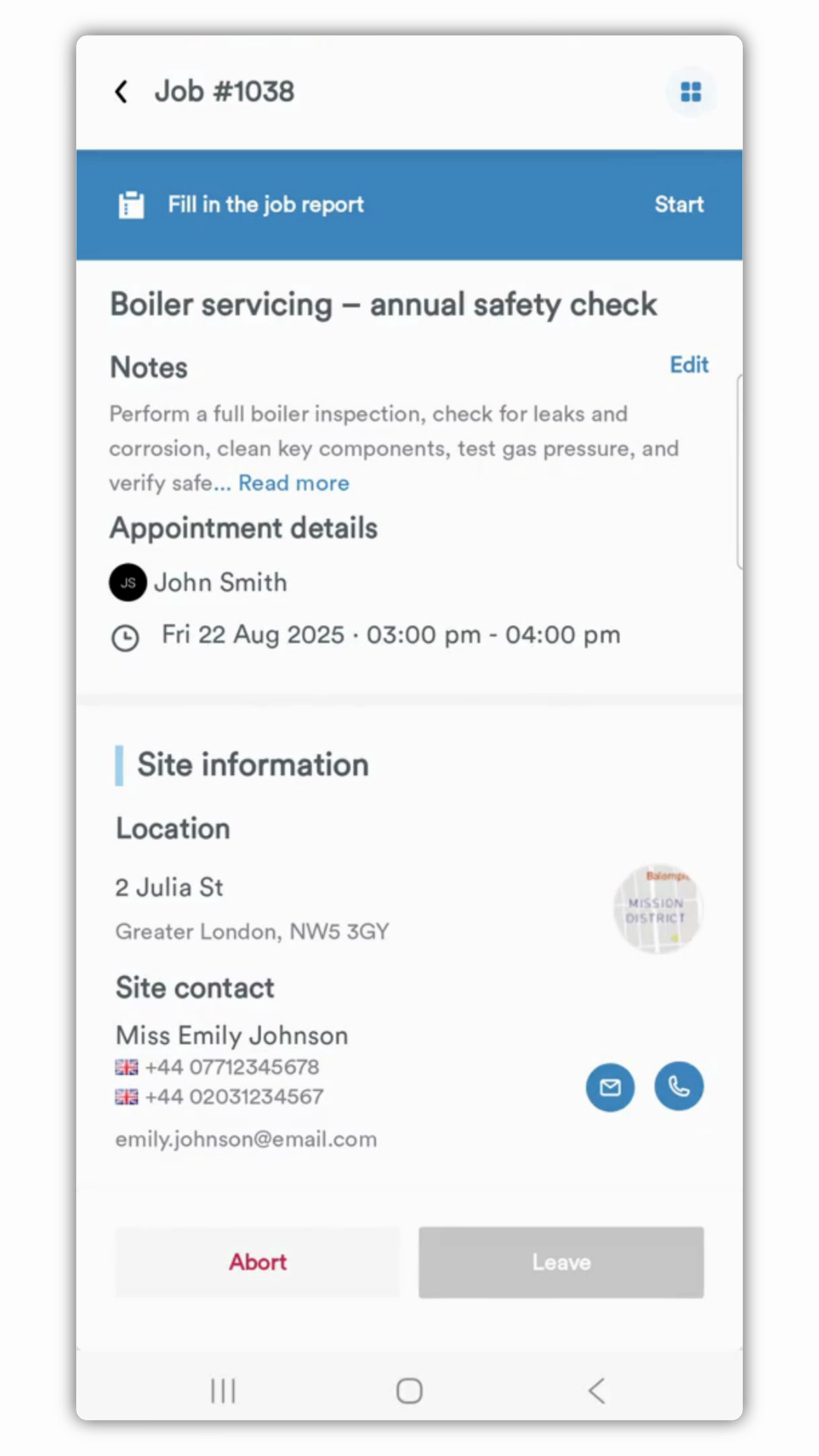
If a job report workflow is assigned, they will see a blue
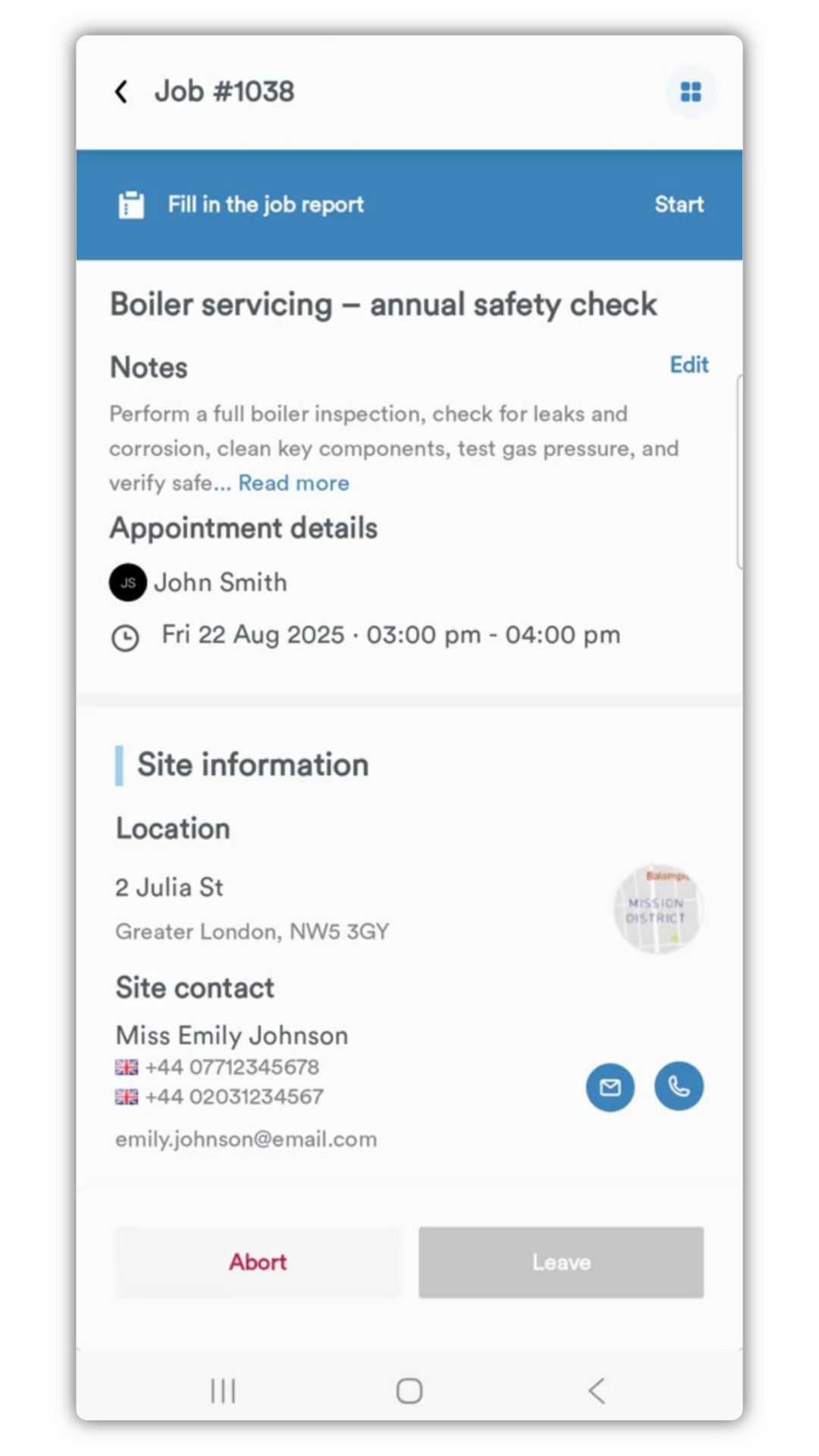
banner at the top of the screen prompting them to fill in the job report. This banner
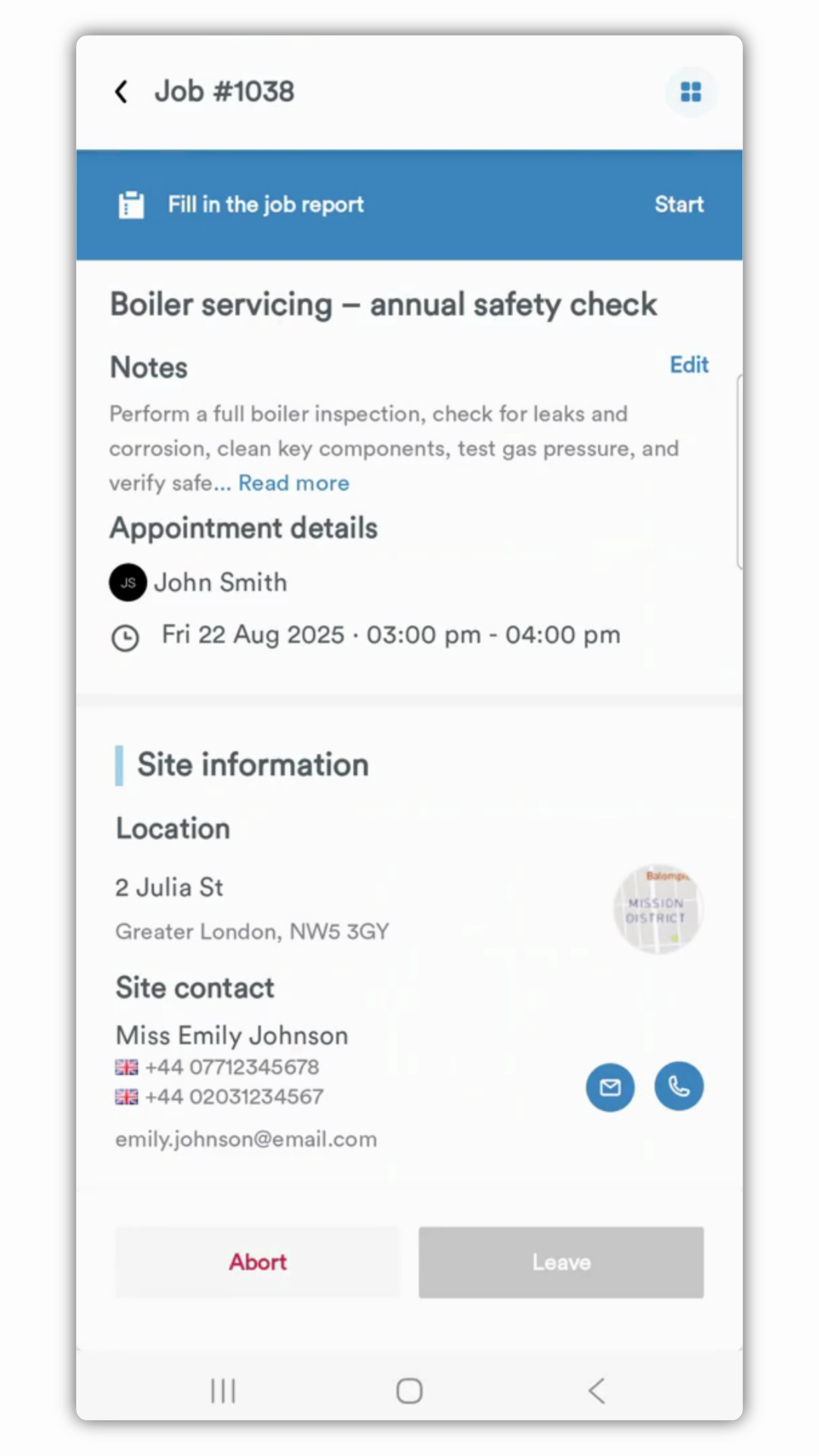
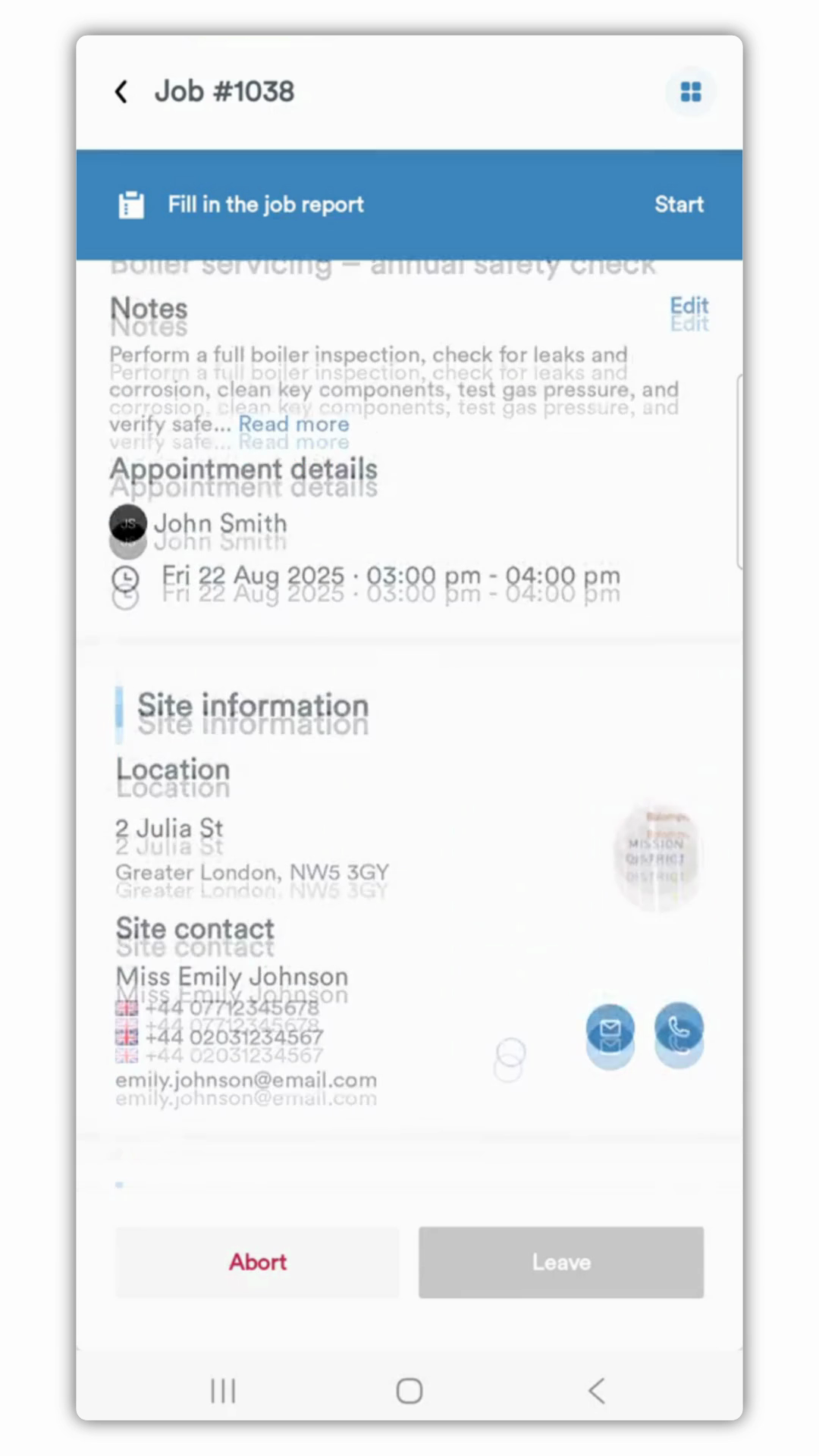
stays pinned to the top as they scroll, ensuring it's always visible. Further down the job screen, the engineer will see the
list of on site tasks you configured. Mandatory tasks are clearly marked with a
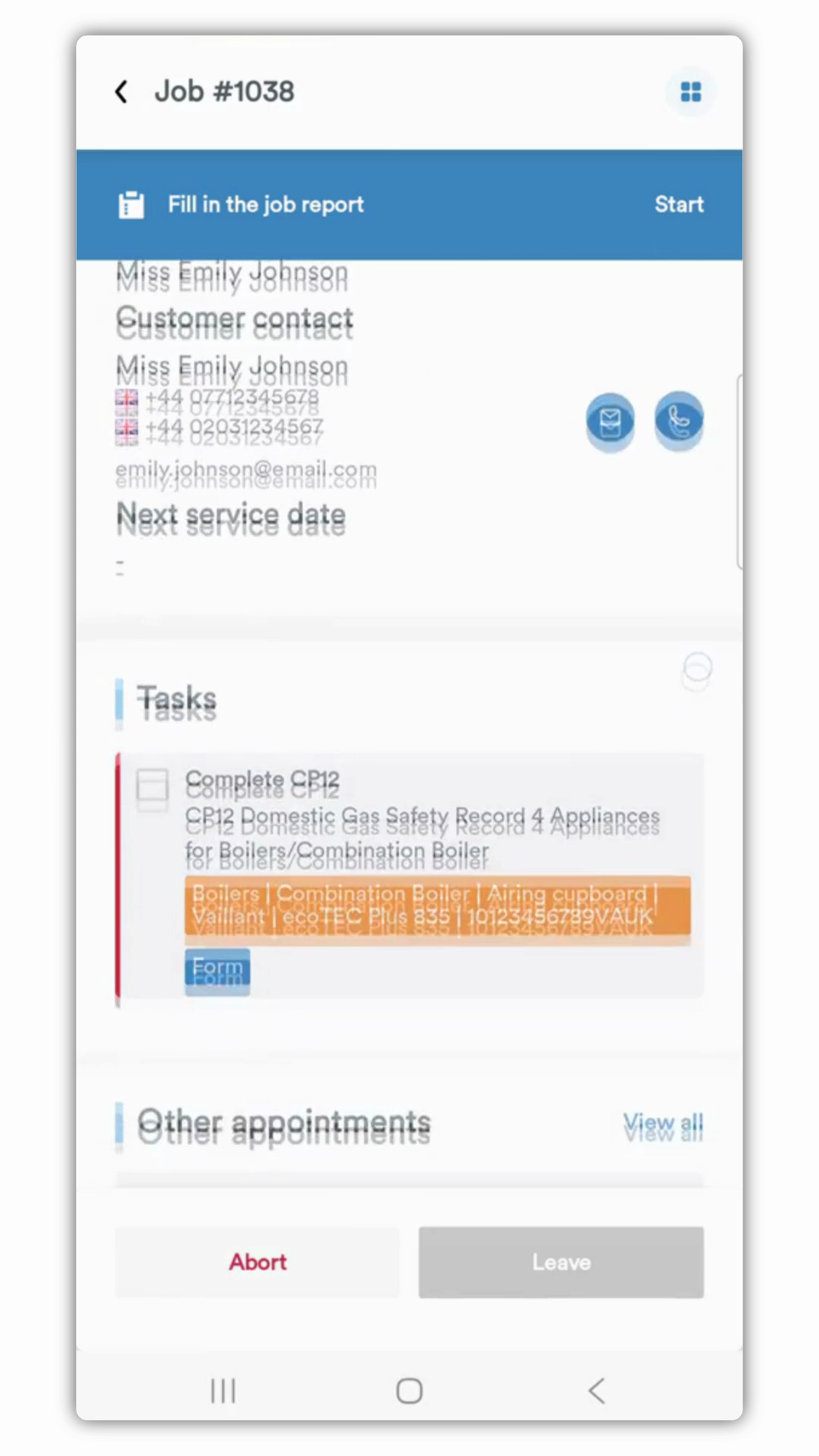
red border or while optional skippable tasks have no border. While on the job, the engineer should complete all the required tasks. To do this, they simply
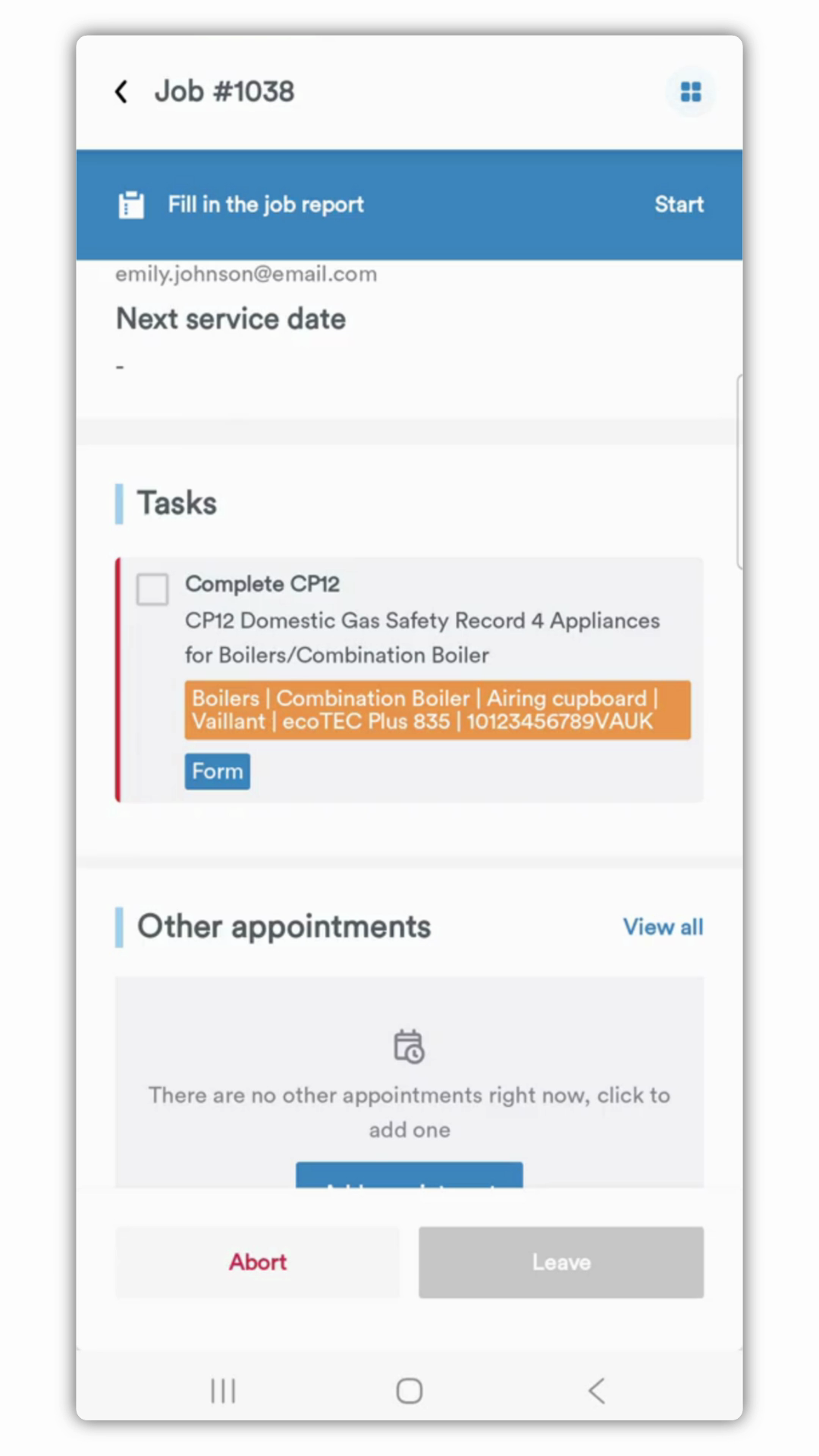
tap on the task directly. This is the only way to action the
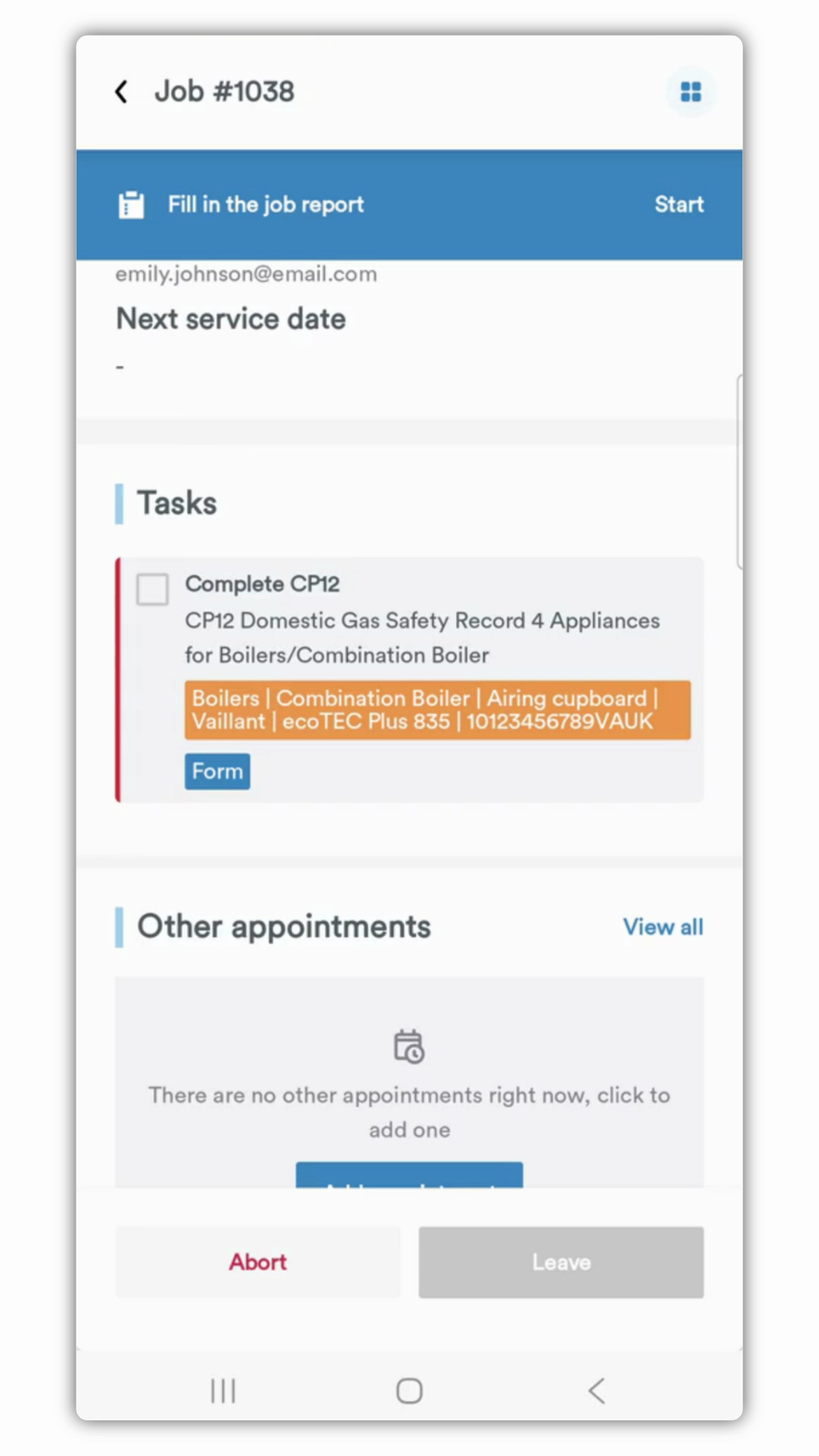
task correctly and ensure it registers as complete. Tapping the task will
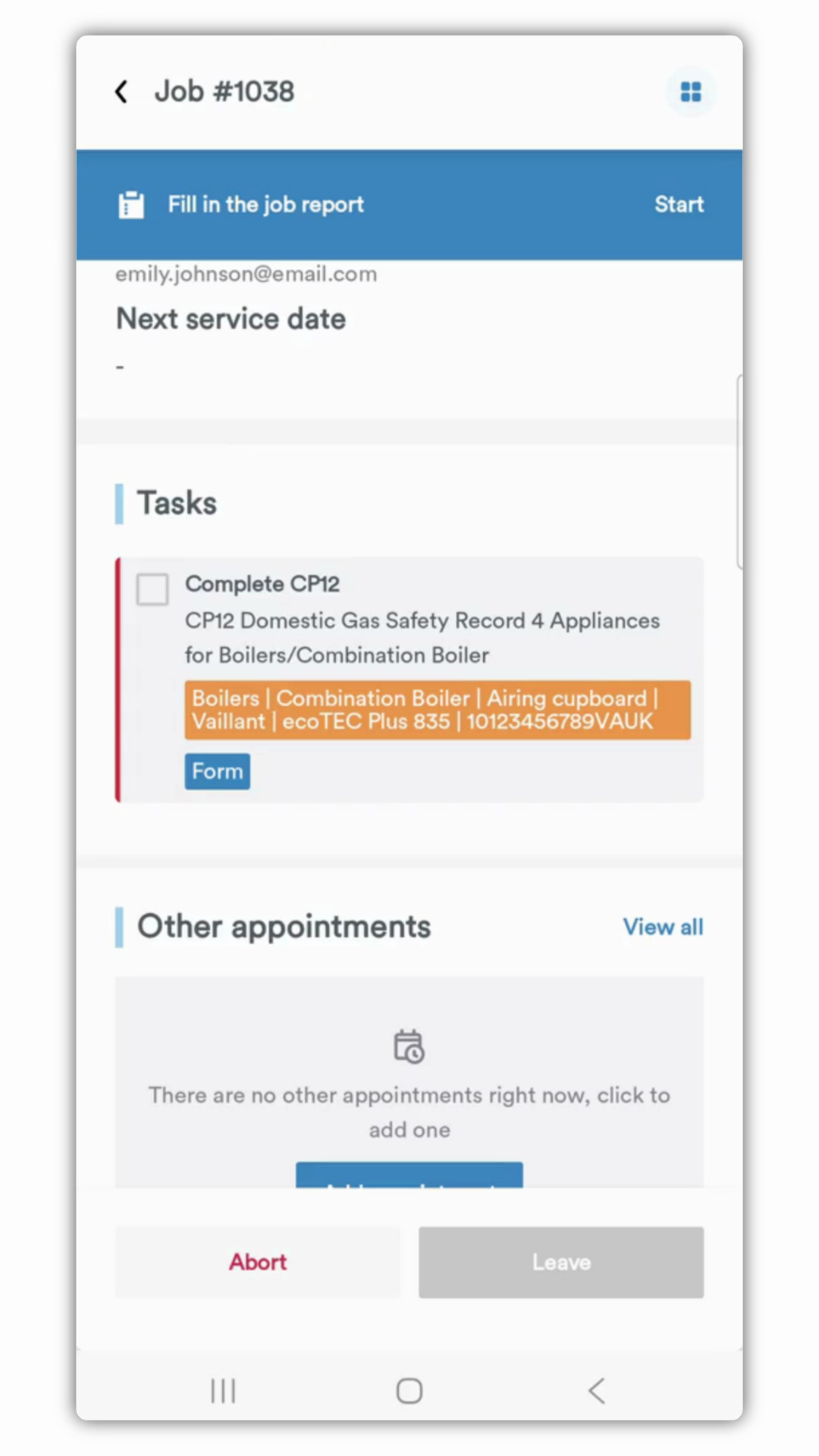
open the specific action you assigned to it. For this job, my engineer needs to complete a form. Once the engineer has filled out the form and
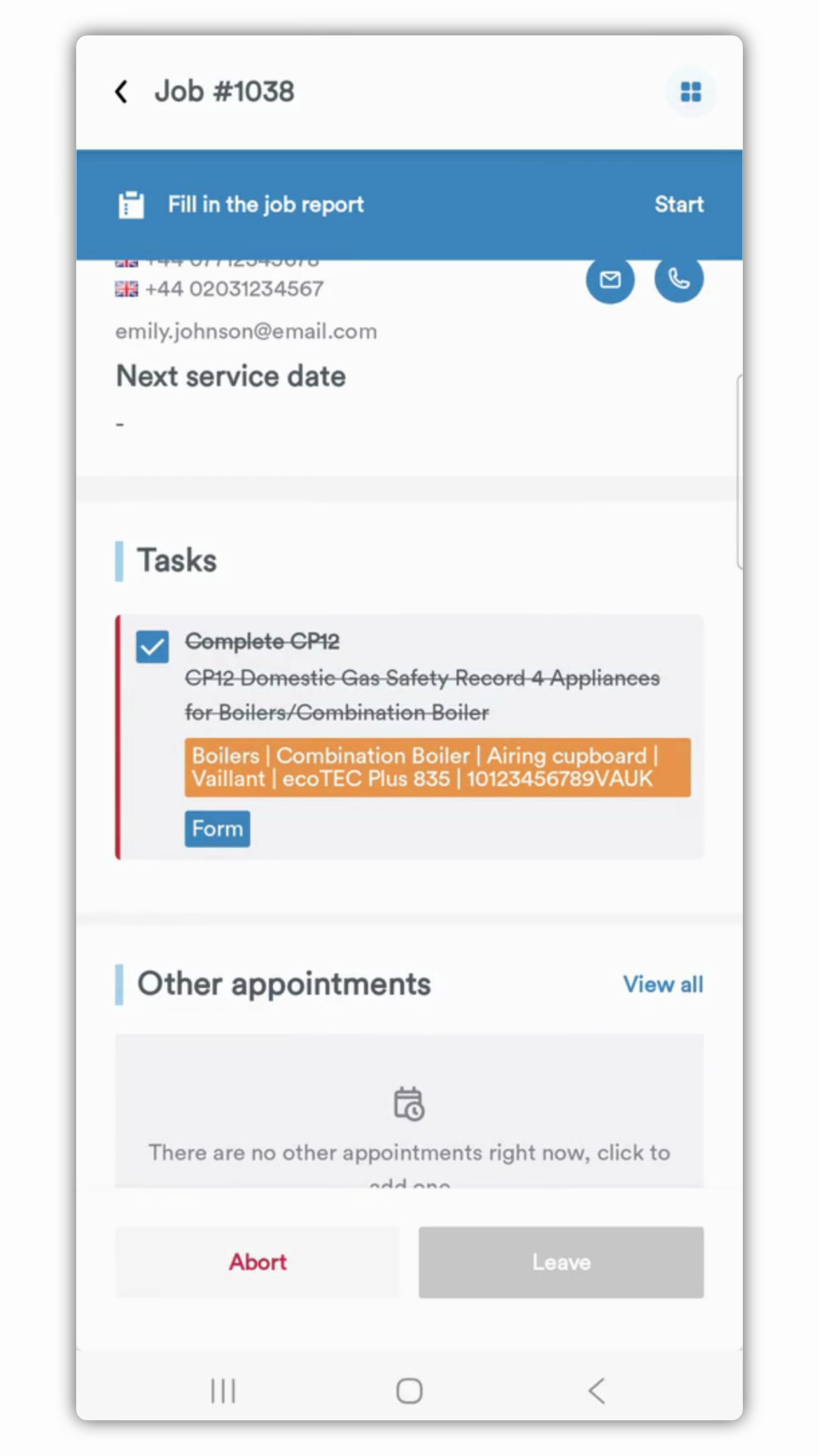
saved it, they will be returned to the job screen. You can now see the
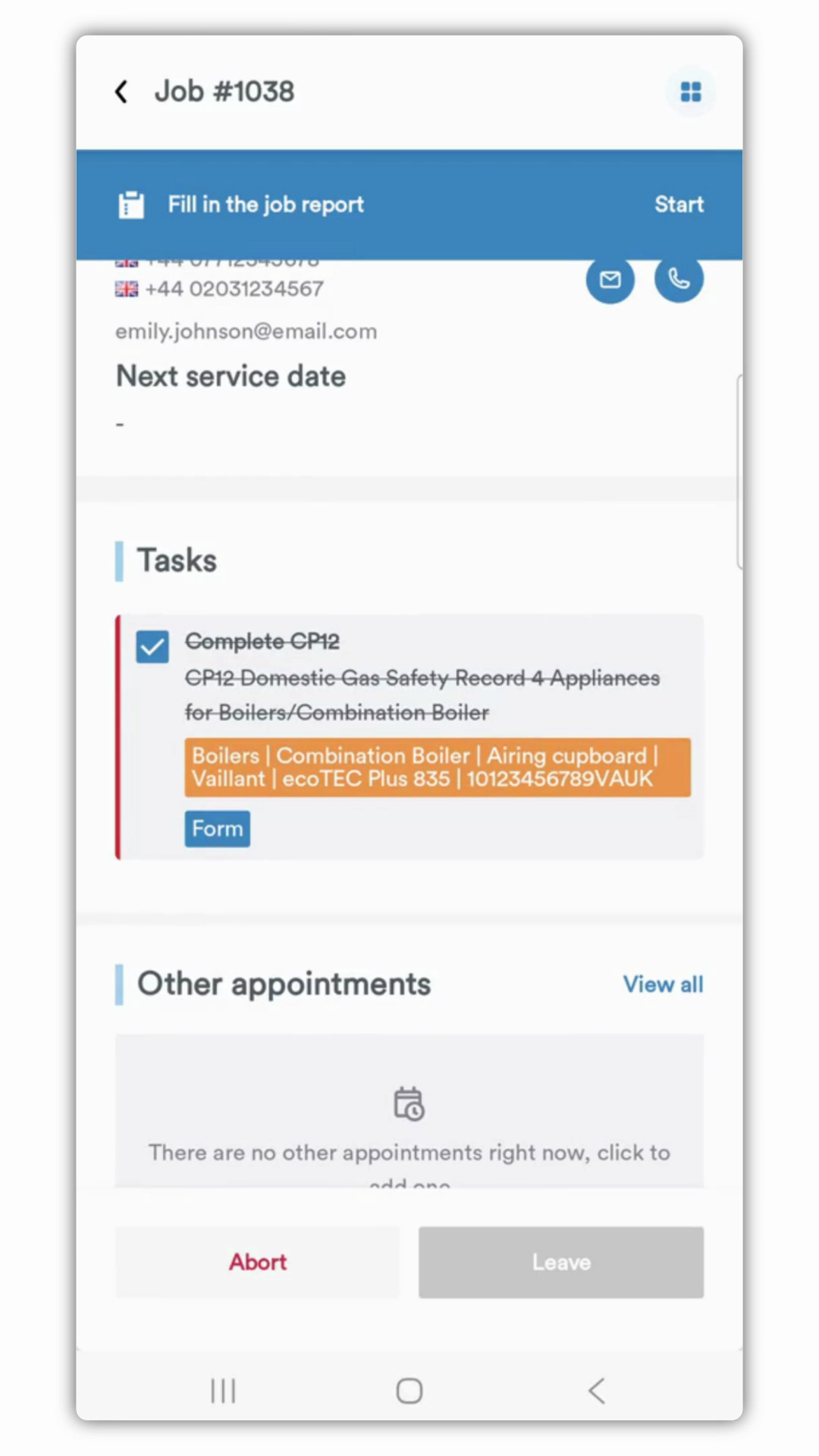
task has been marked as complete with a check mark and is
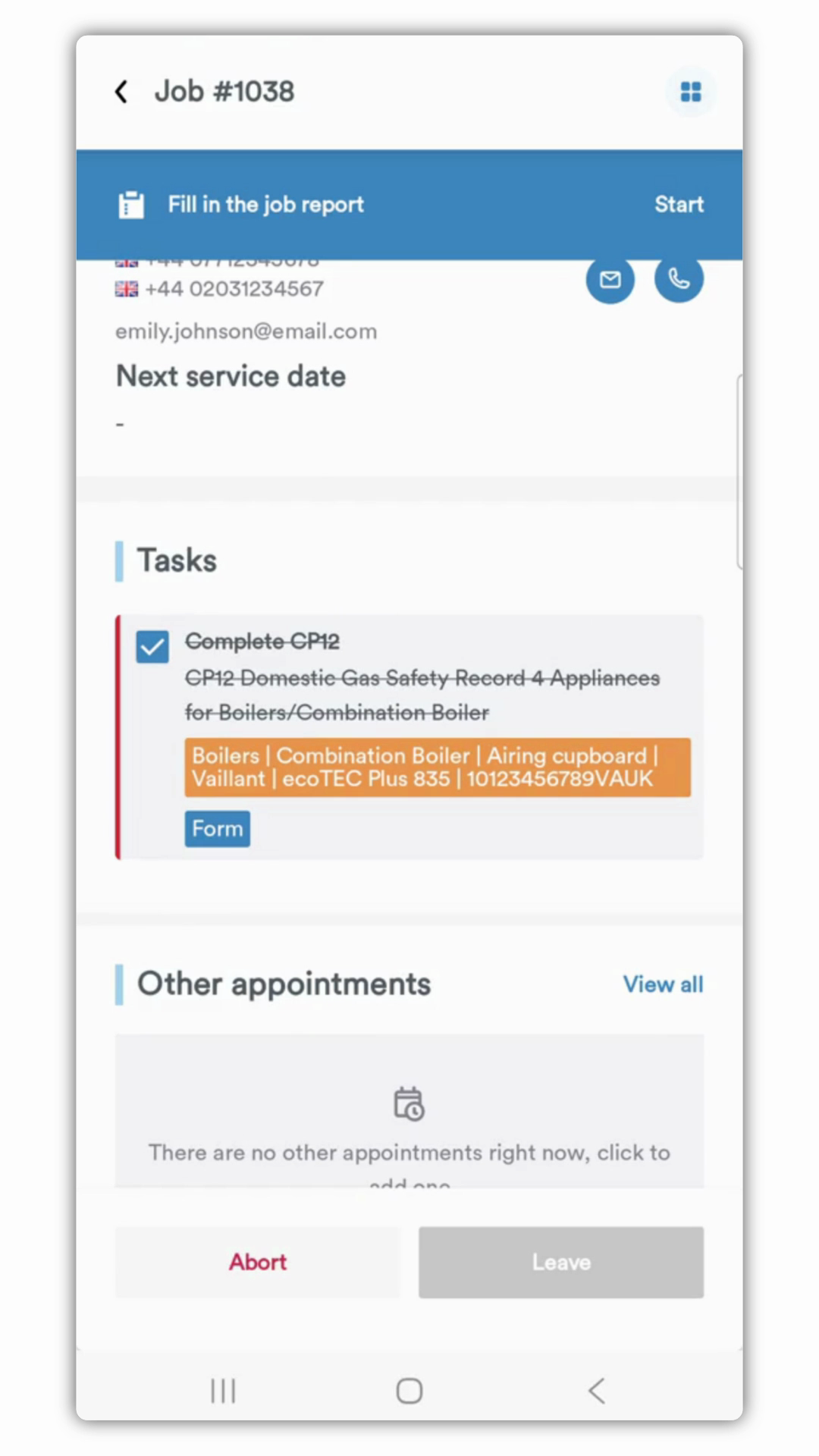
struck through. They should work through all assigned tasks for the job. To complete the job report itself, the engineer
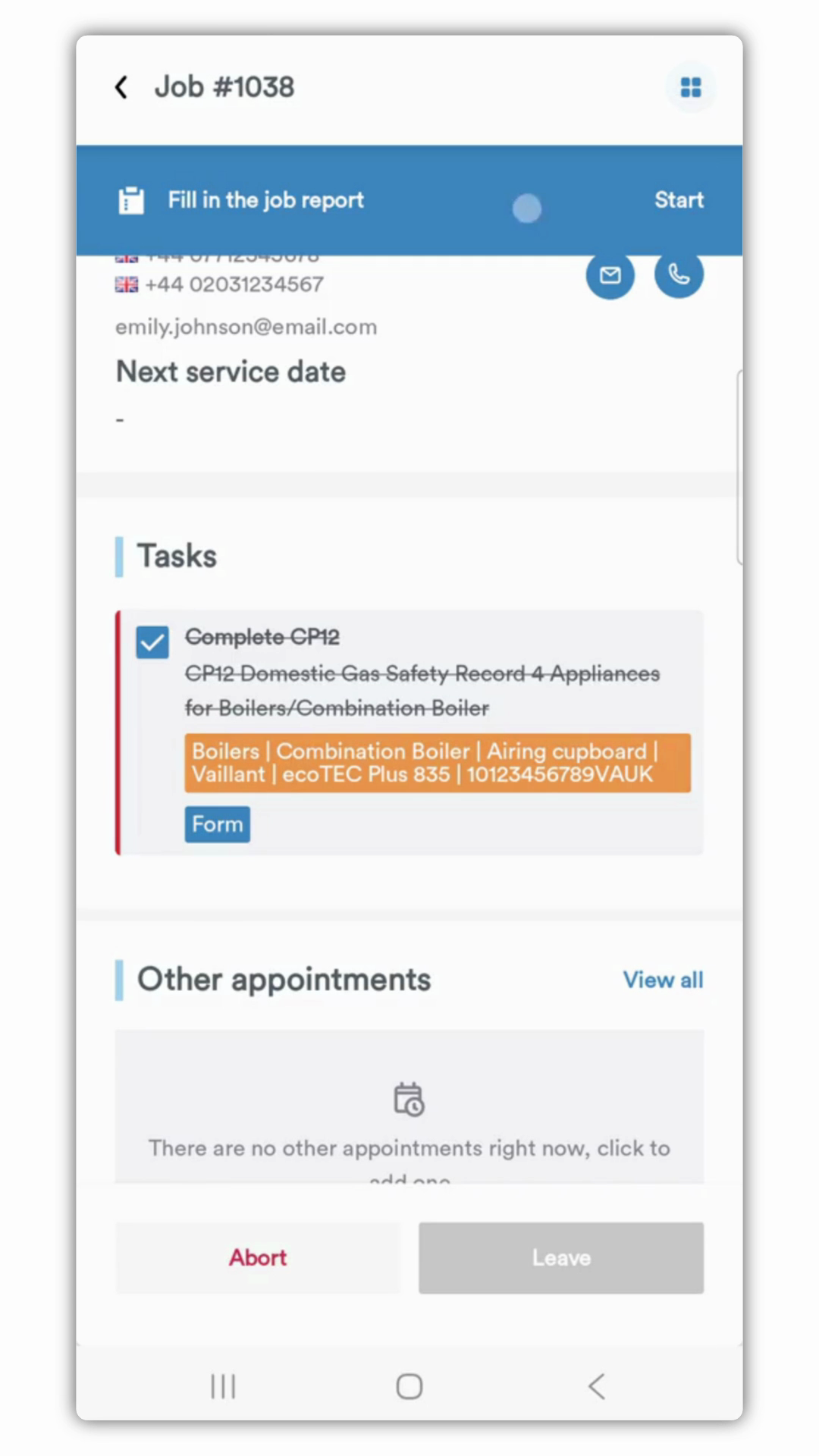
taps the blue banner. This opens the mobile form you
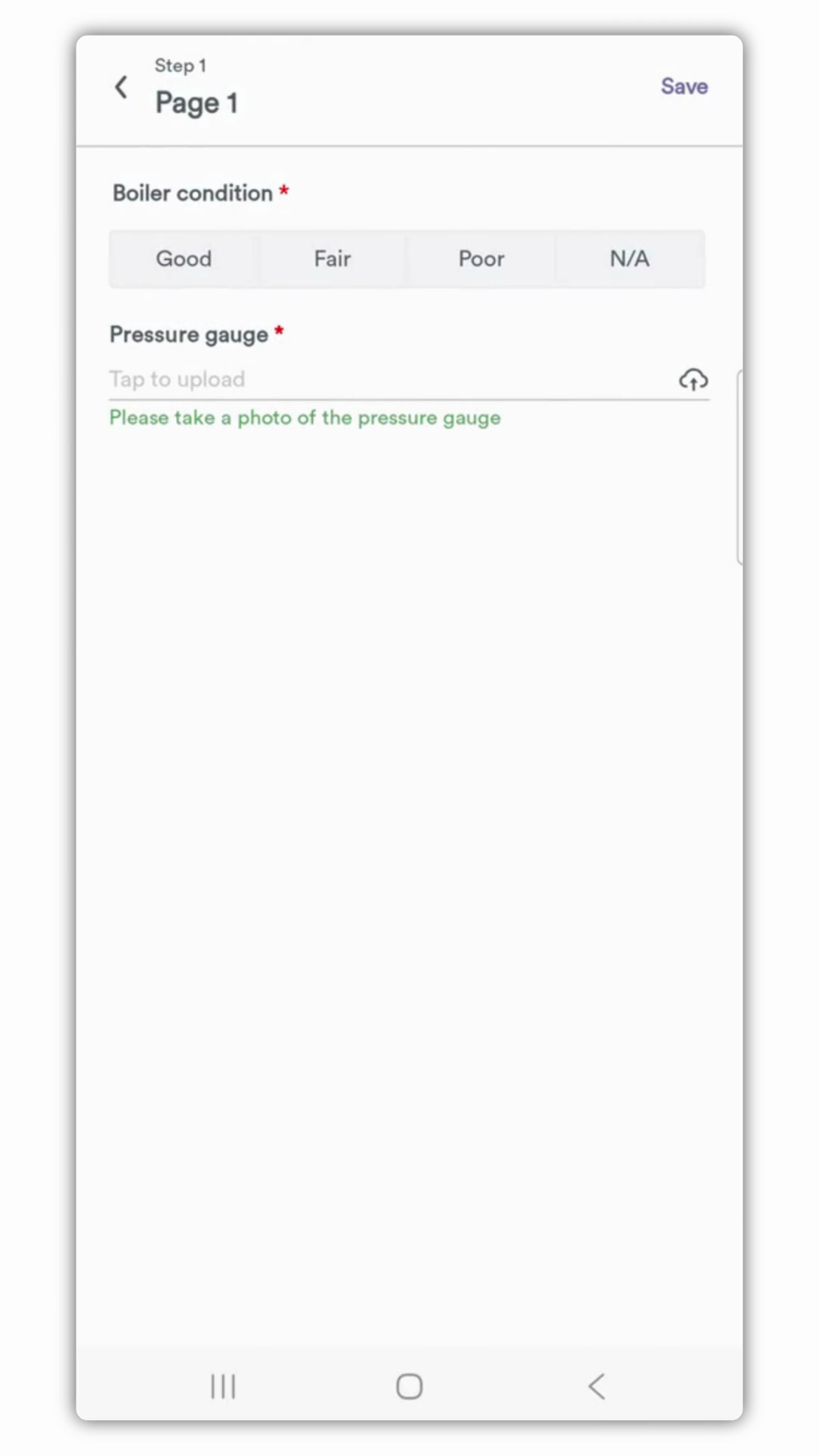
designed in the workflow where they can fill in all the required information. Once the form is
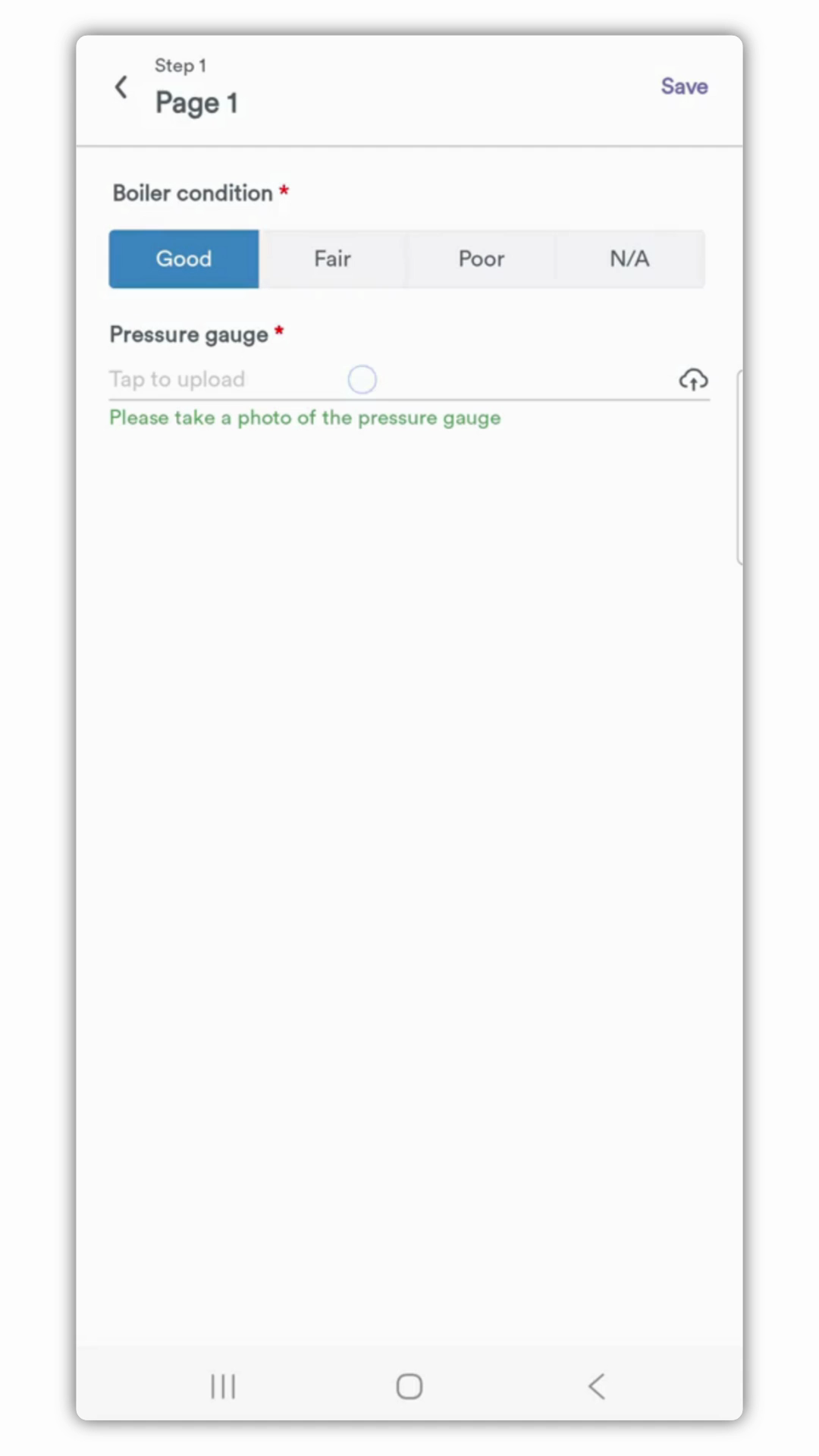
saved, they are returned to the job screen. They'll see the
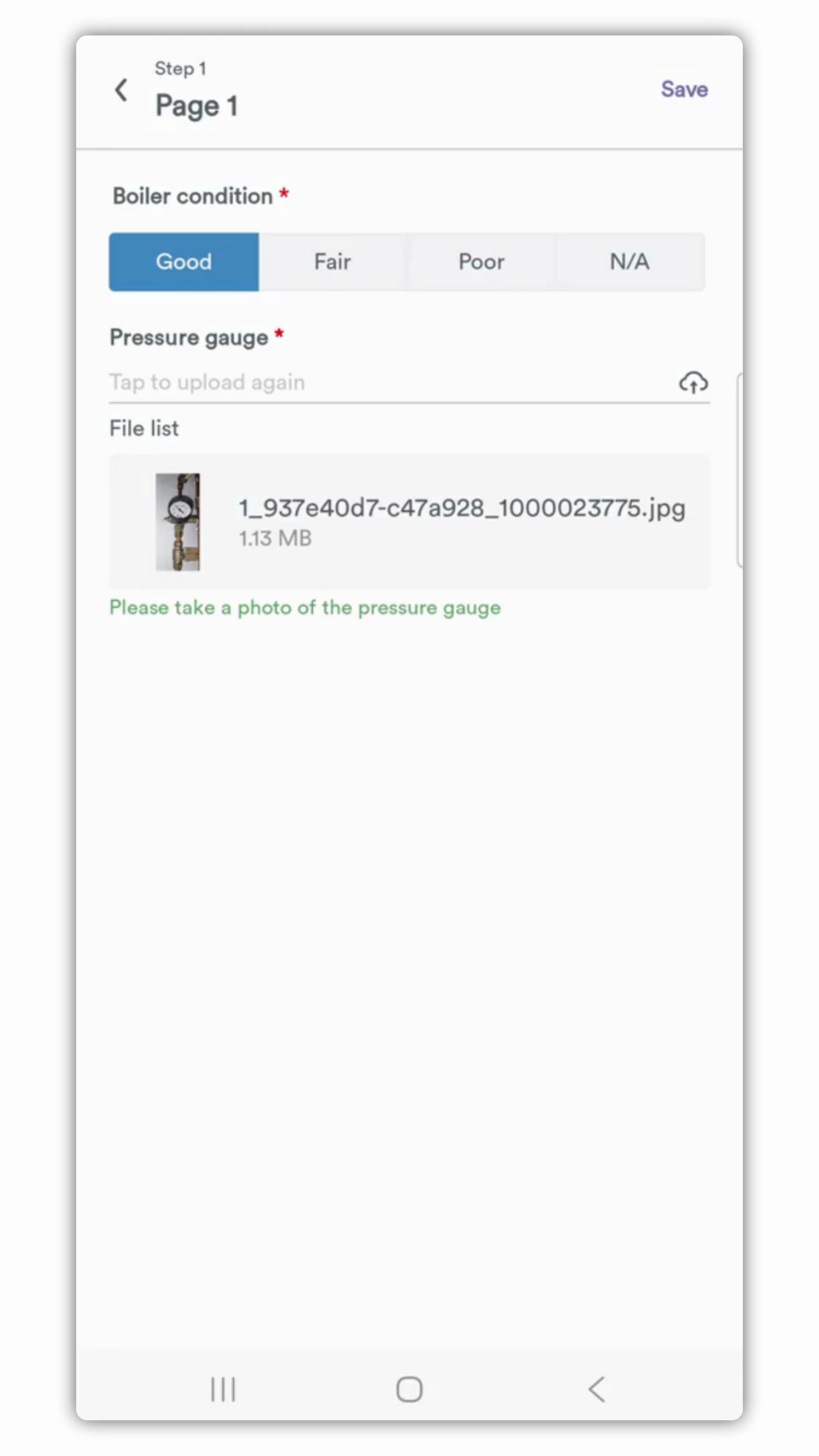
banner has now turned
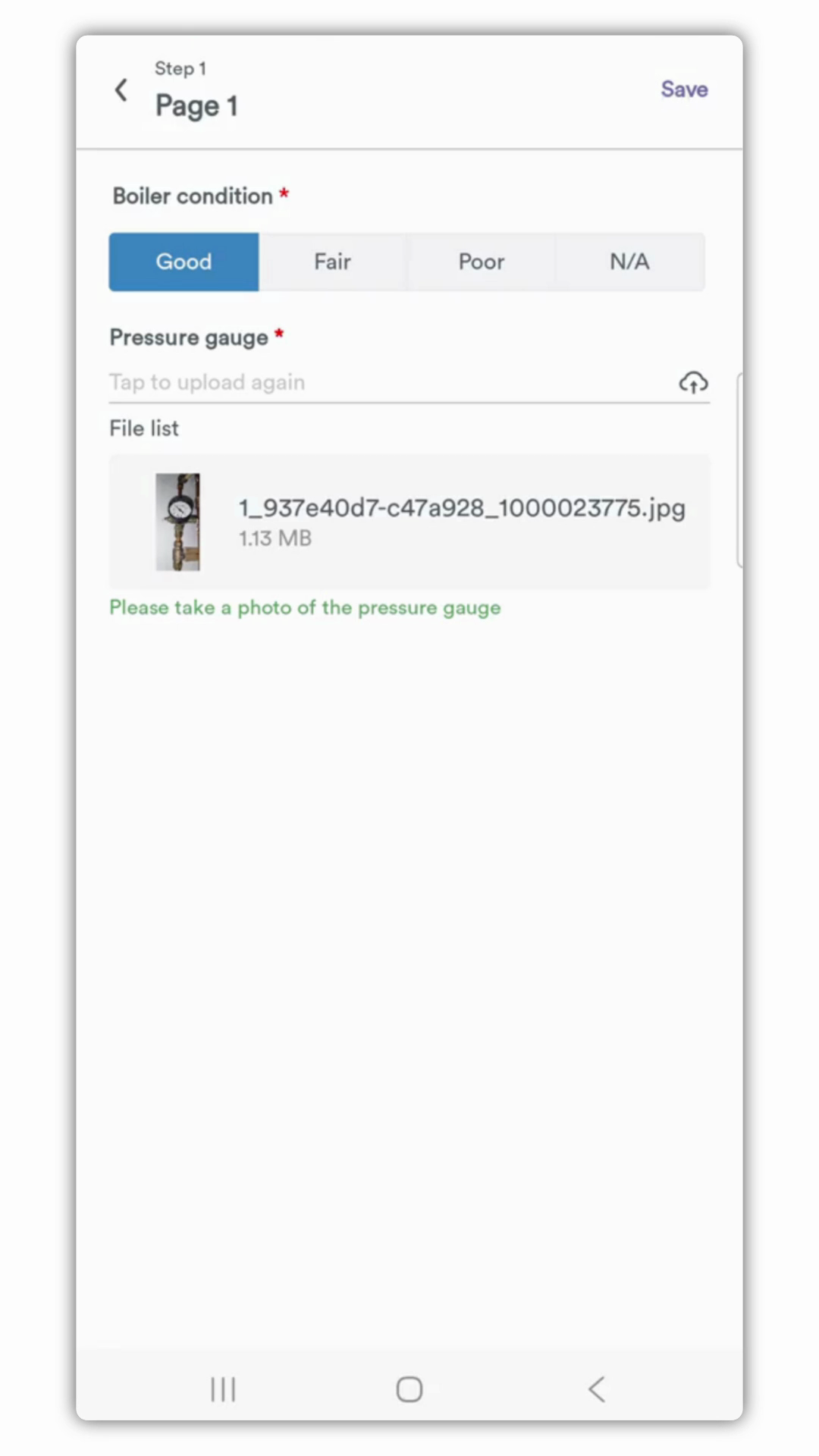
green and displays Job report completed, giving a clear visual confirmation that the work
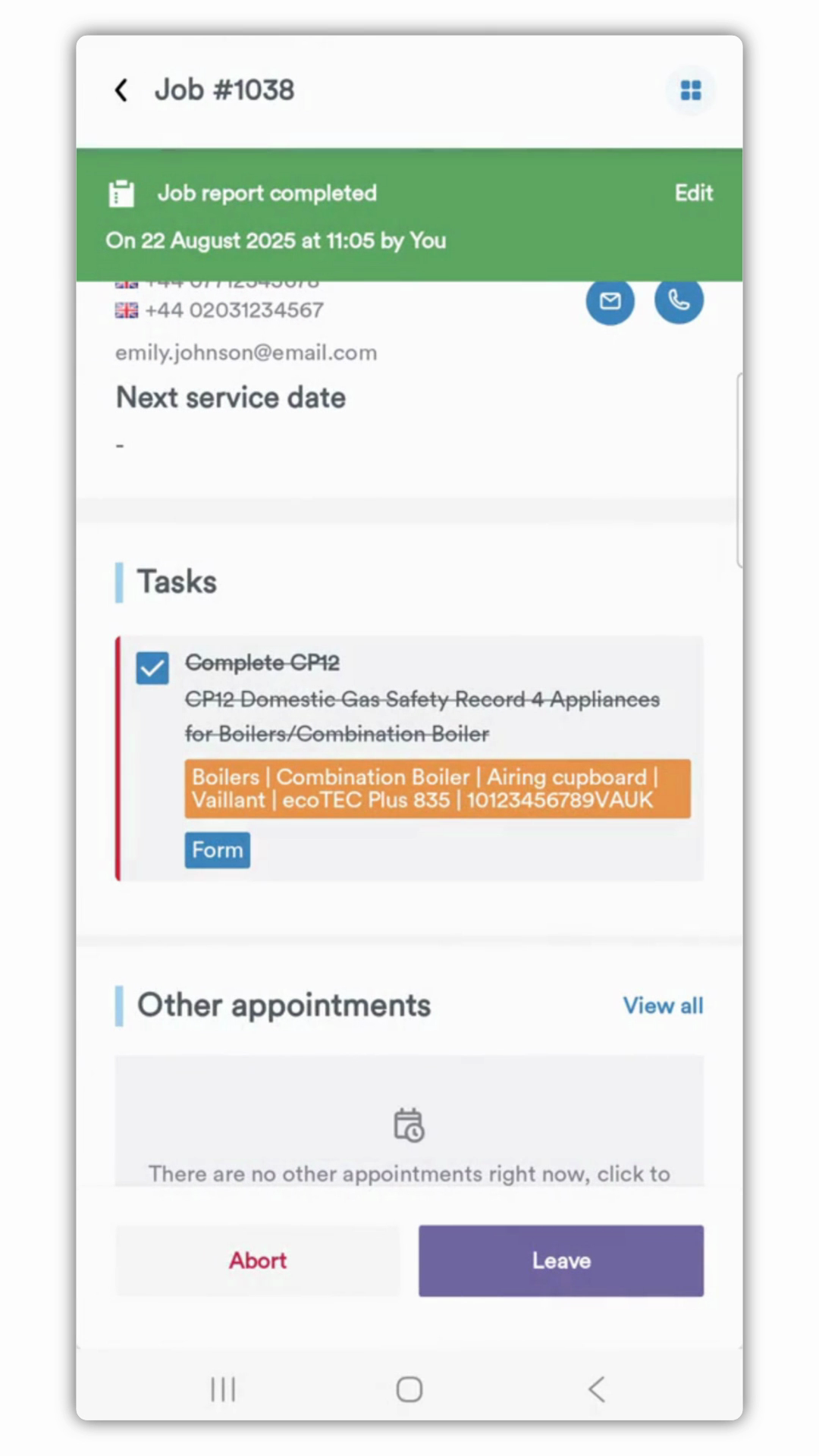
is documented. If everything is finished on site, the engineer can now
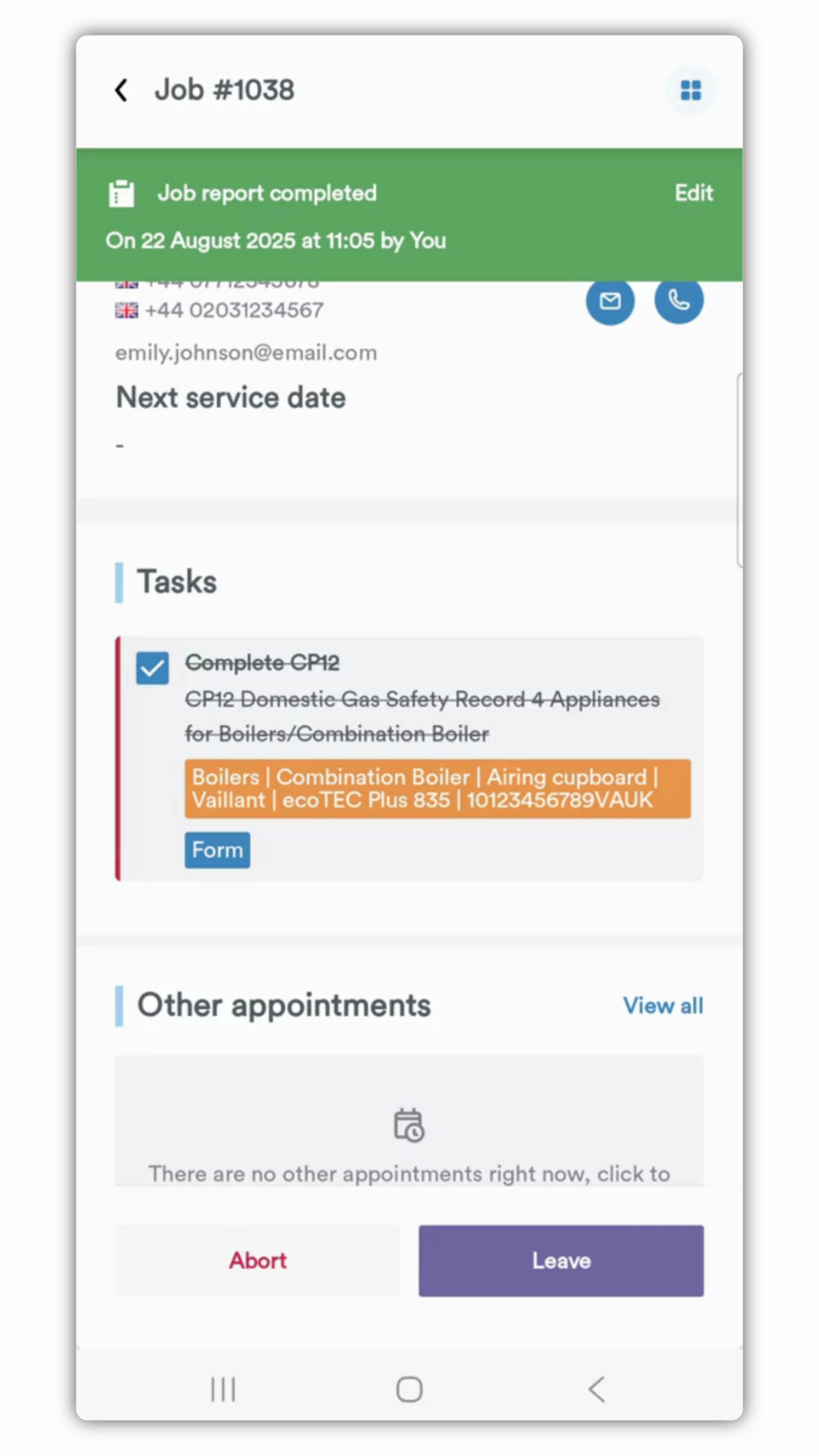
proceed to leave the appointment and select a job
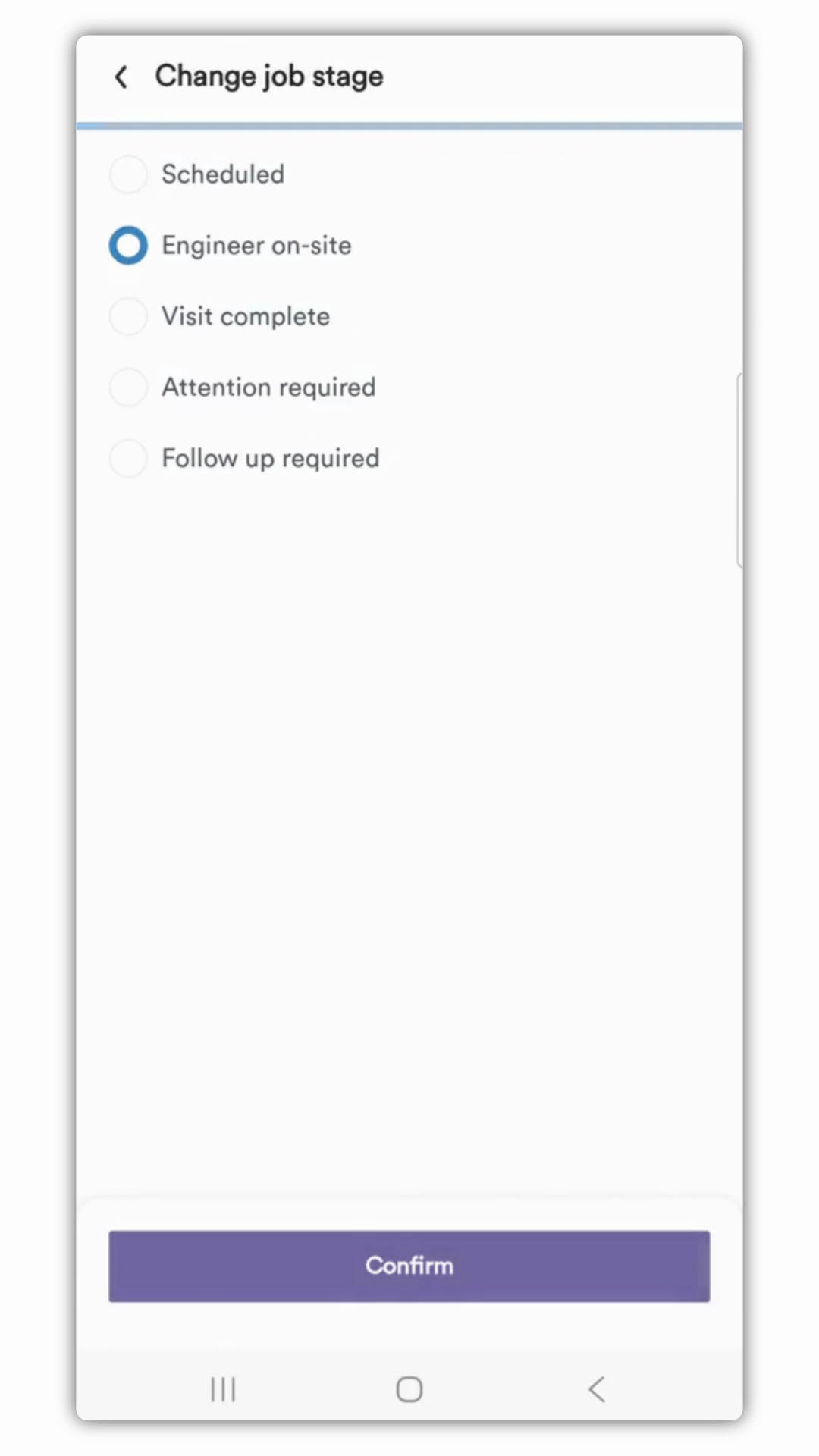
stage if one is required. After confirming whether the job is complete
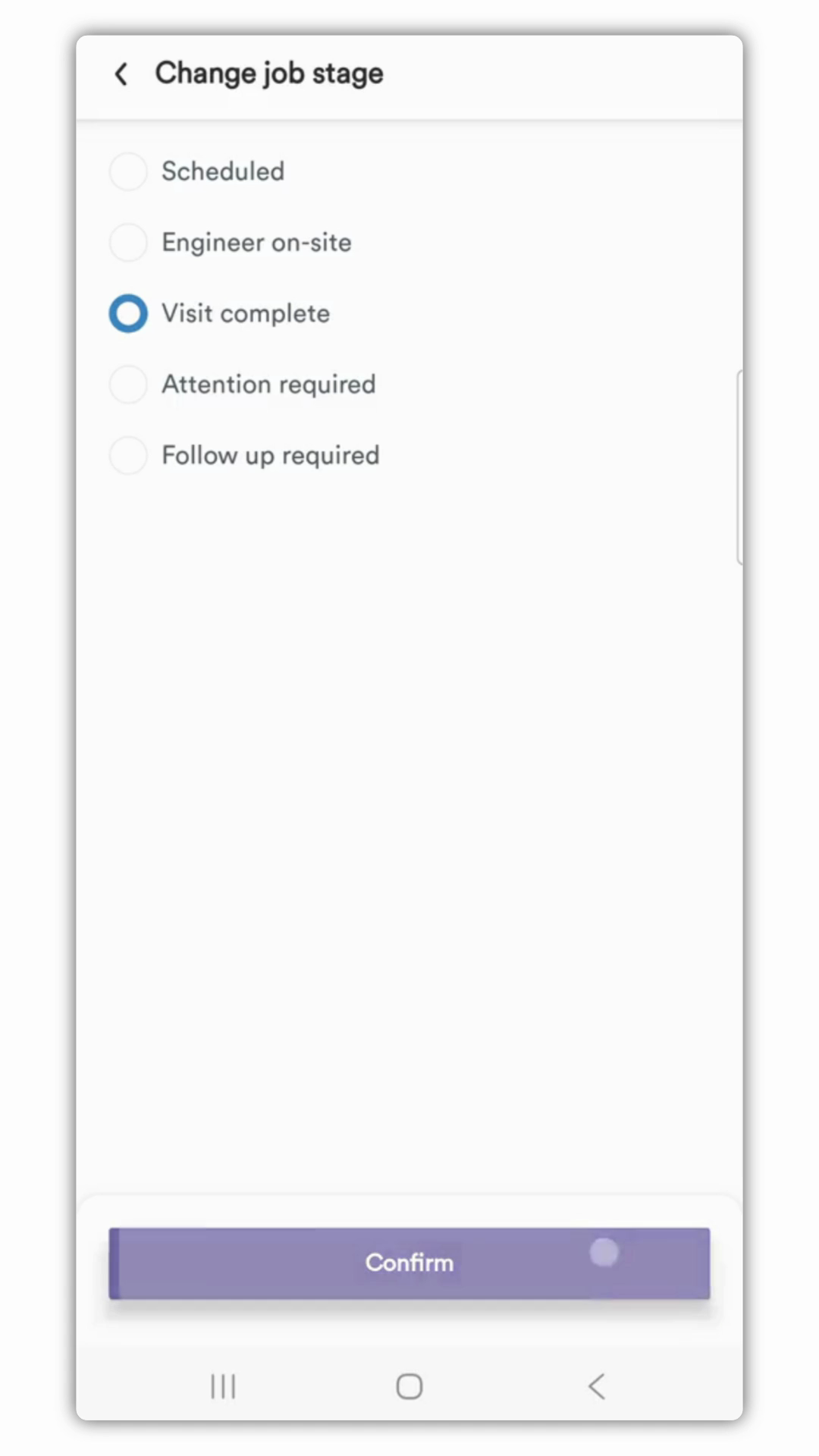
or needs a follow up, the signature process begins. If you enable the customer signature,
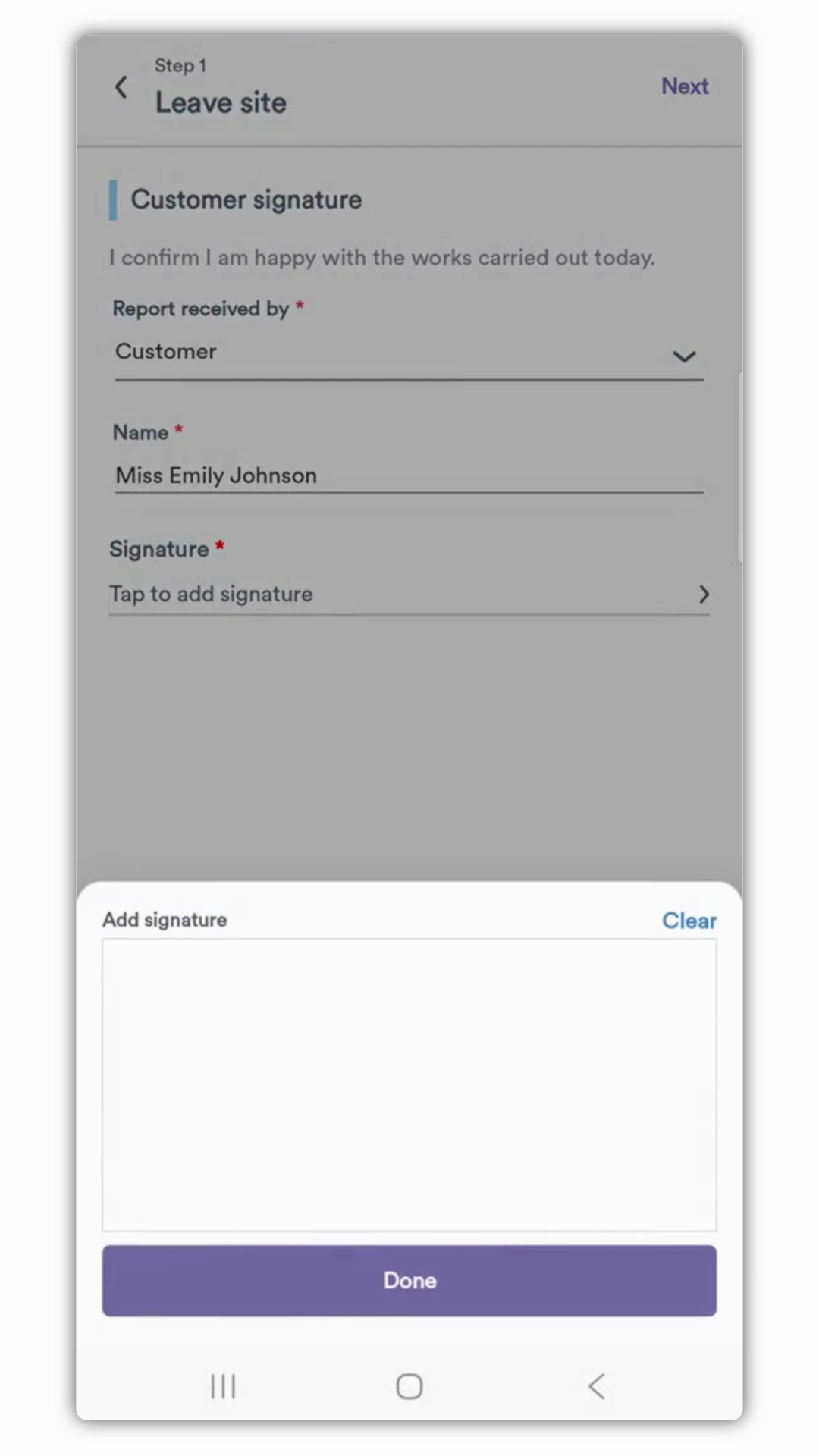
the customer can read the statement you configured and provide their
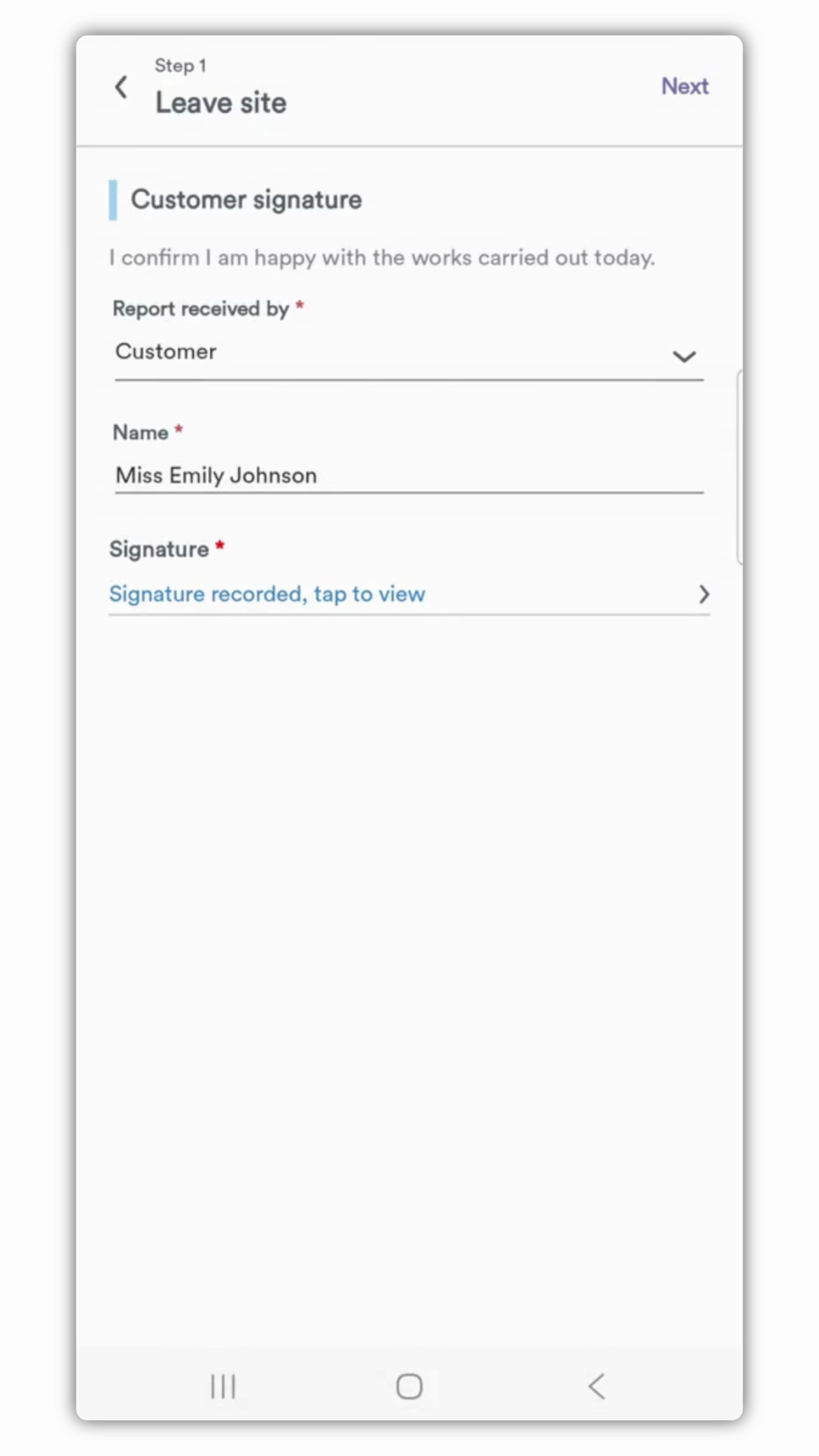
signature directly on the device. After the customer signature is saved, the engineer must always
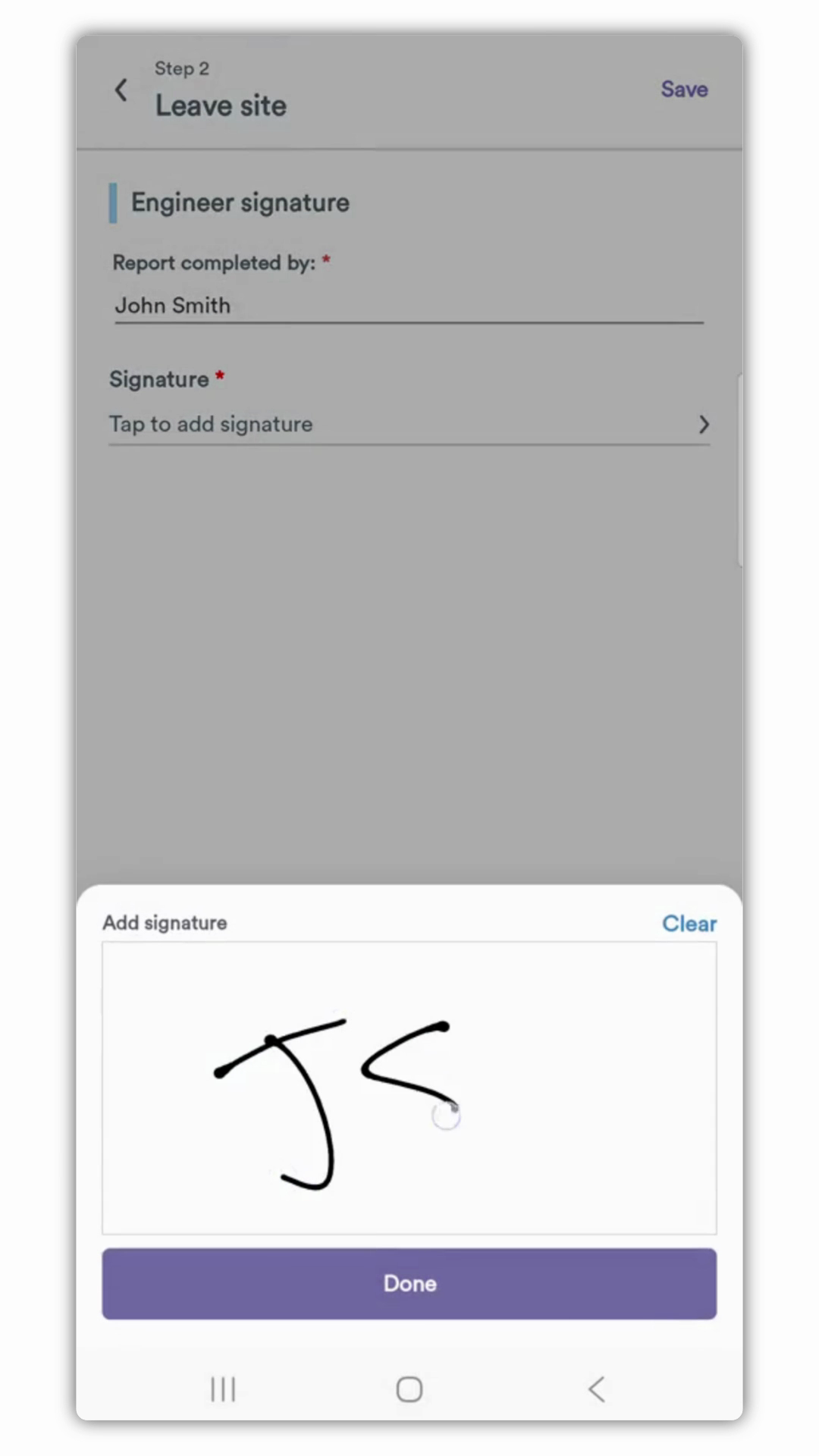
enter their own signature to formally sign
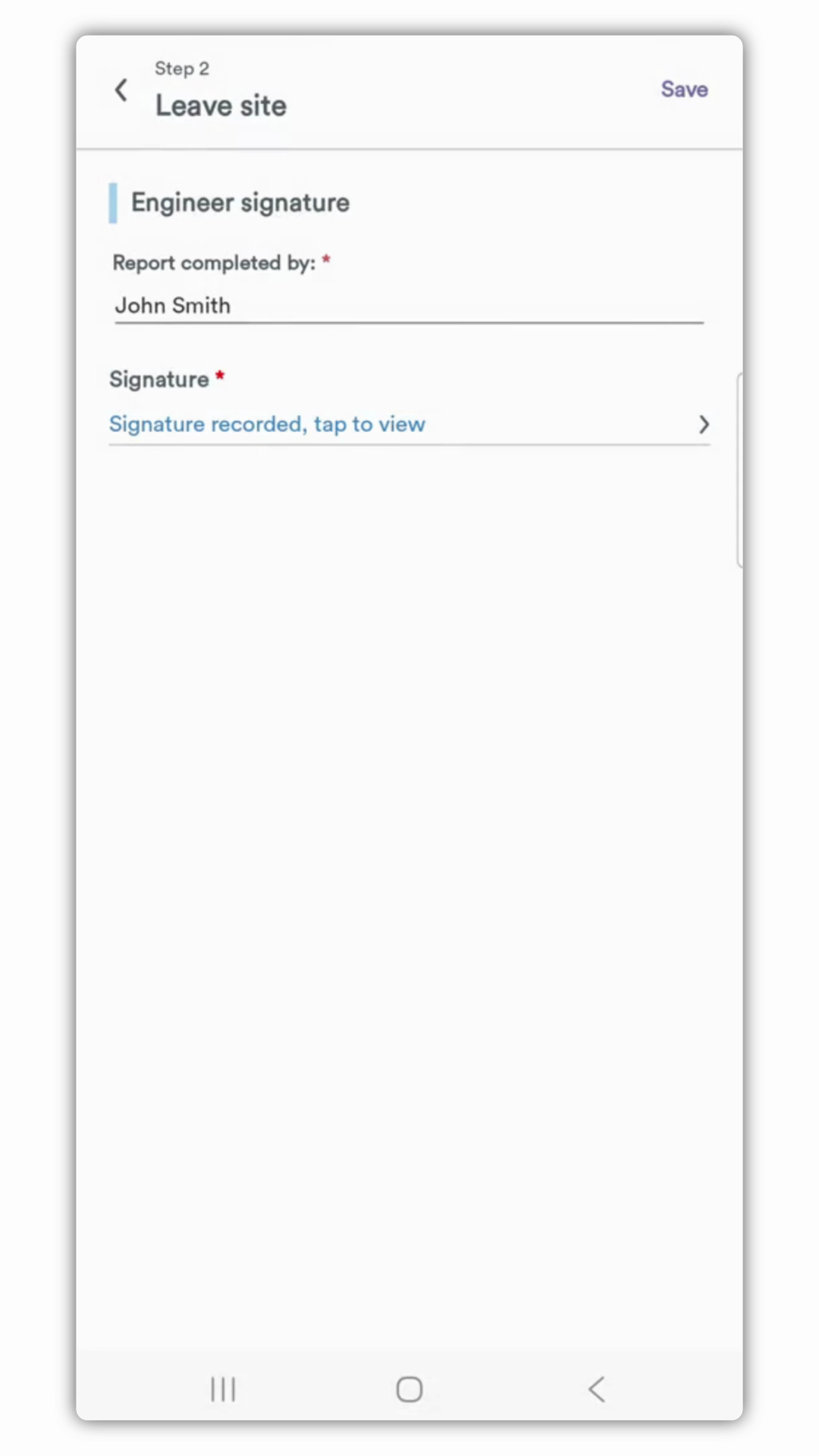
off on the job and the report they've completed.
Created on
Did you find this article helpful?