

The information that appears on your job report is completely customizable to control this Open Job Report
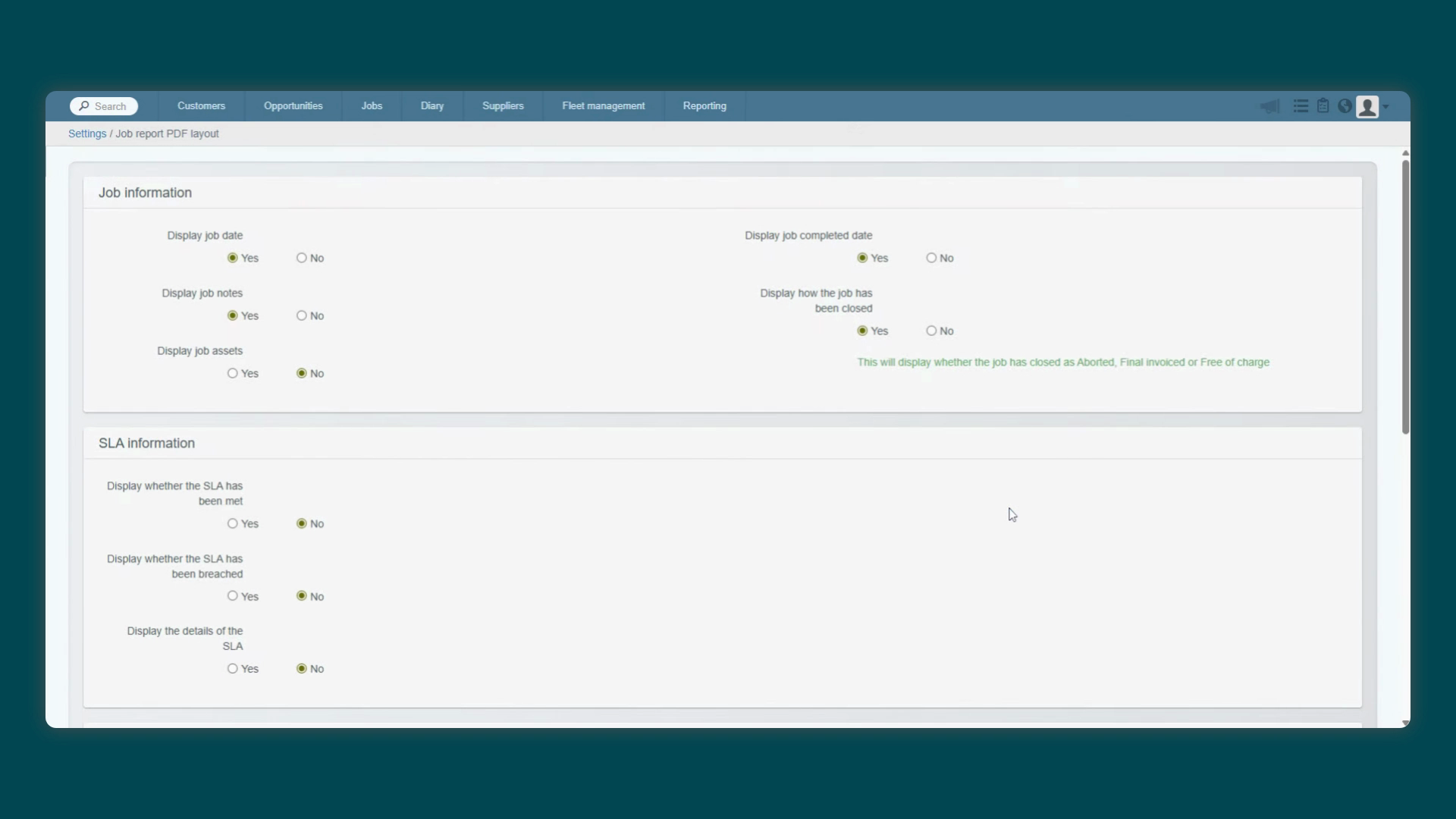
PDF layout in the Jobs category in your settings. On this screen you'll see a list of
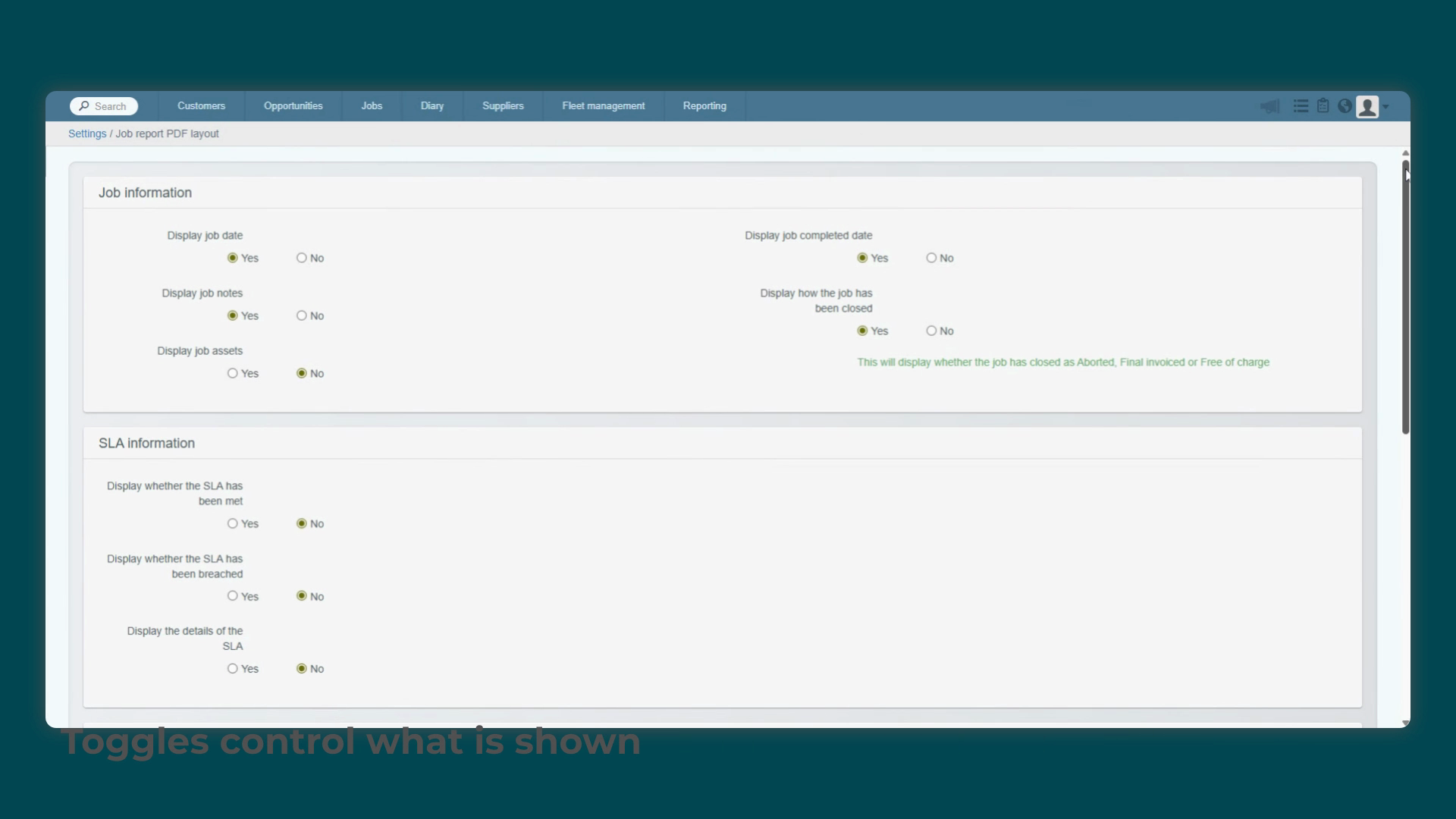
toggles grouped into sections like Job Information, Diary and Appointment Information and other. This allows you to control
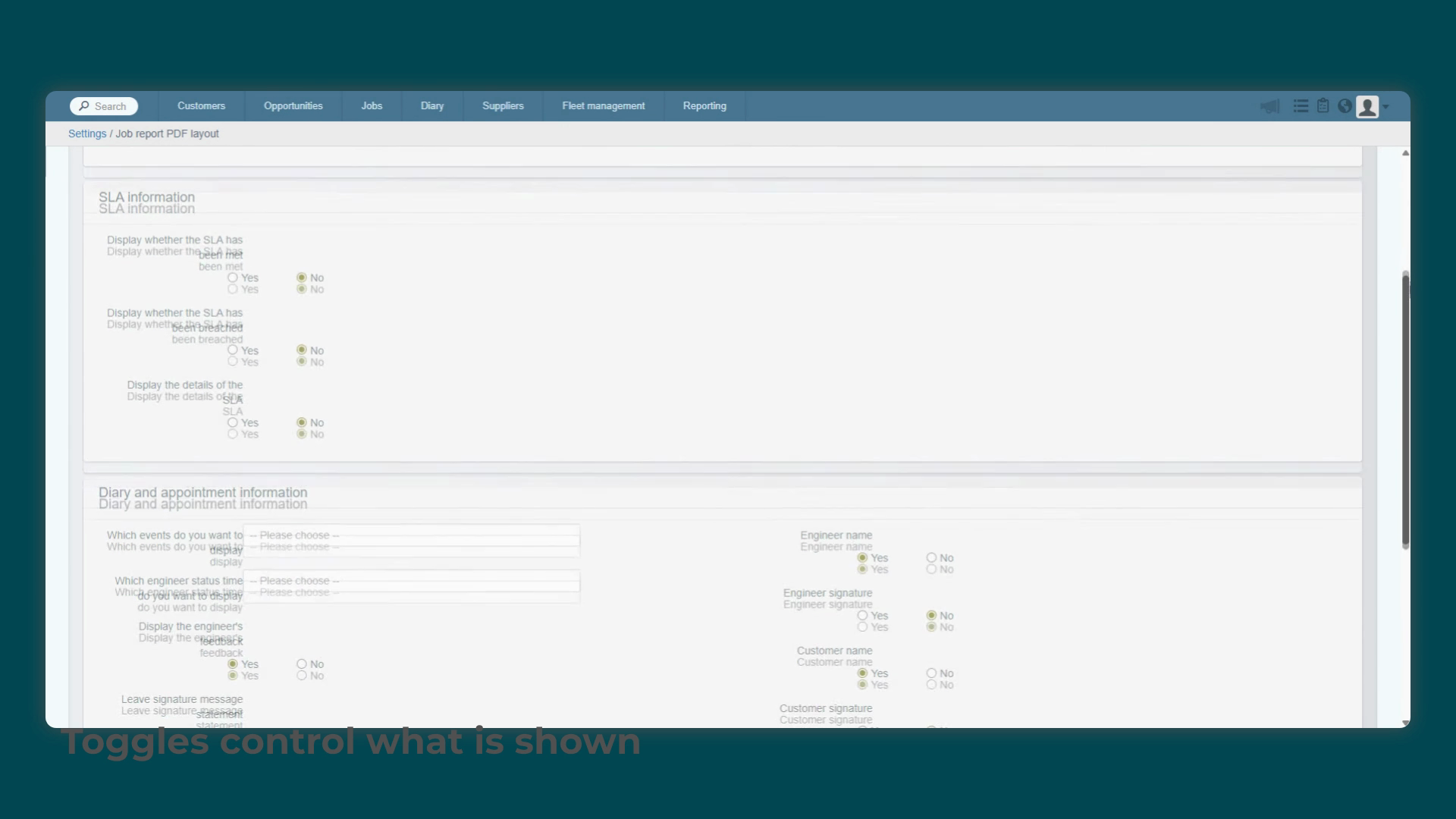
exactly what information is included, ensuring your customers see a clean report with only relevant details. For example, you can choose whether to display the
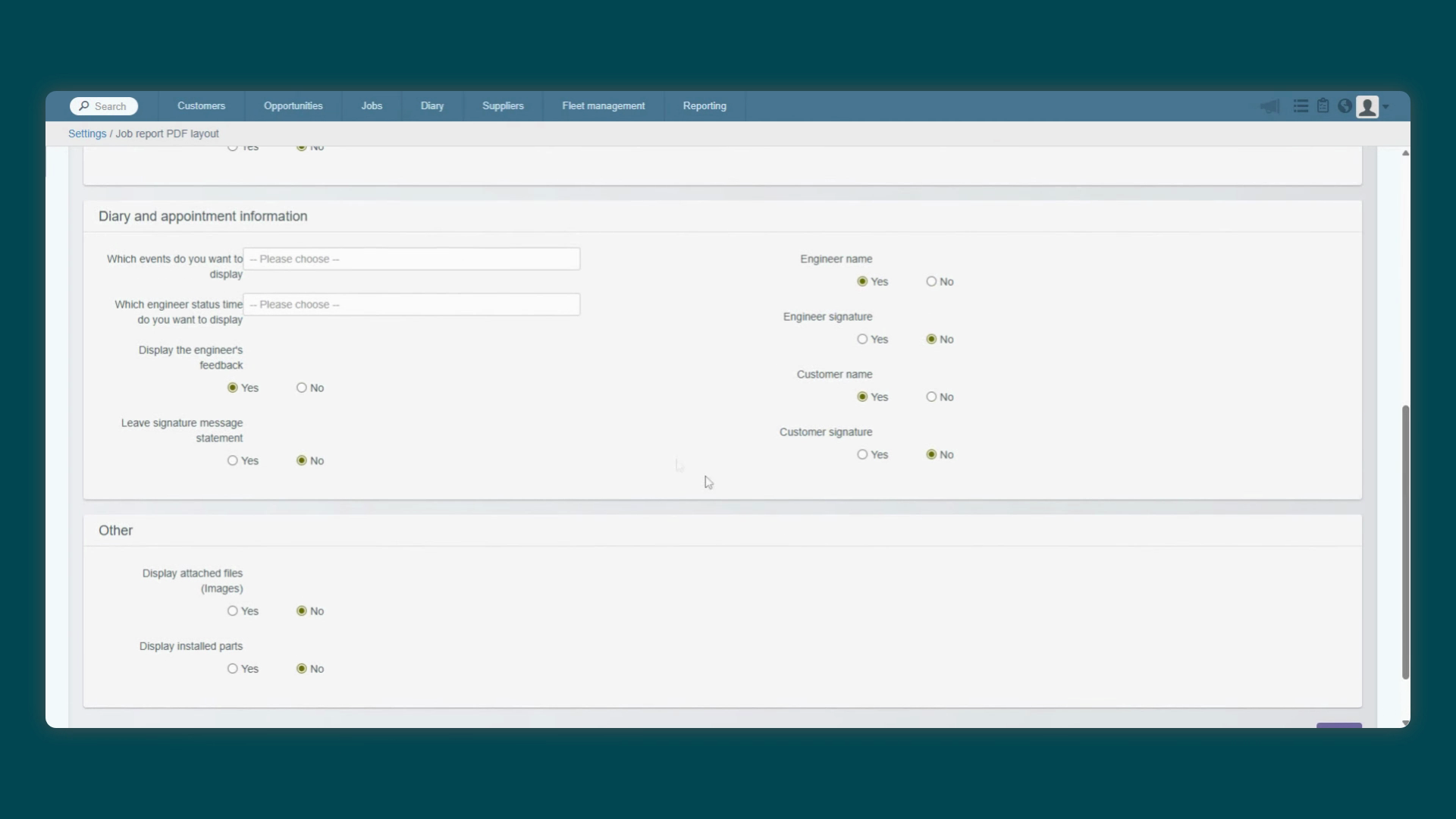
Engineer Feedback and specific appointment statuses. Make sure to add Leave here to enable. All other fields we can
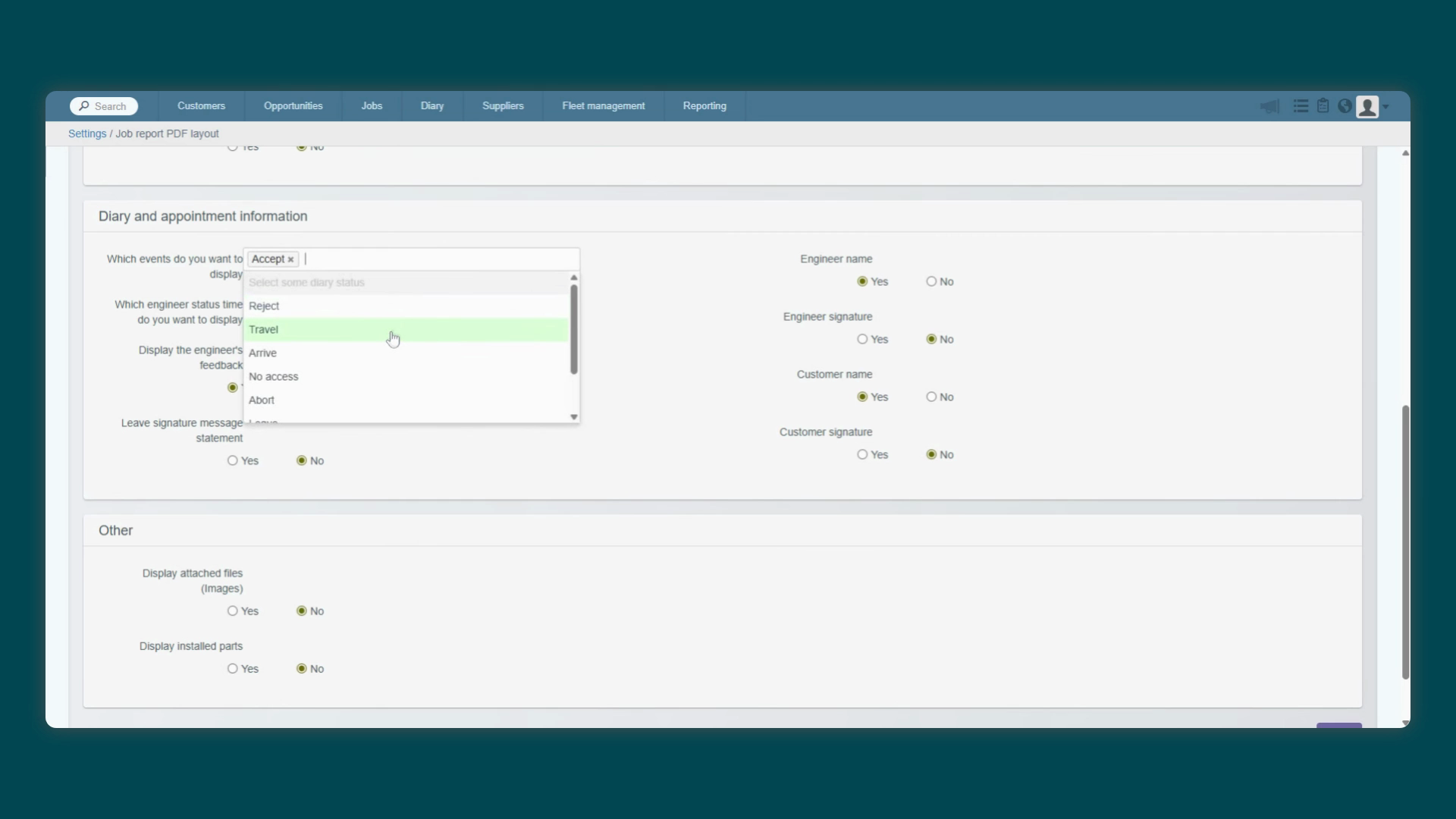
select in this section will display correctly. You also have granular control over which signatures to include with separate
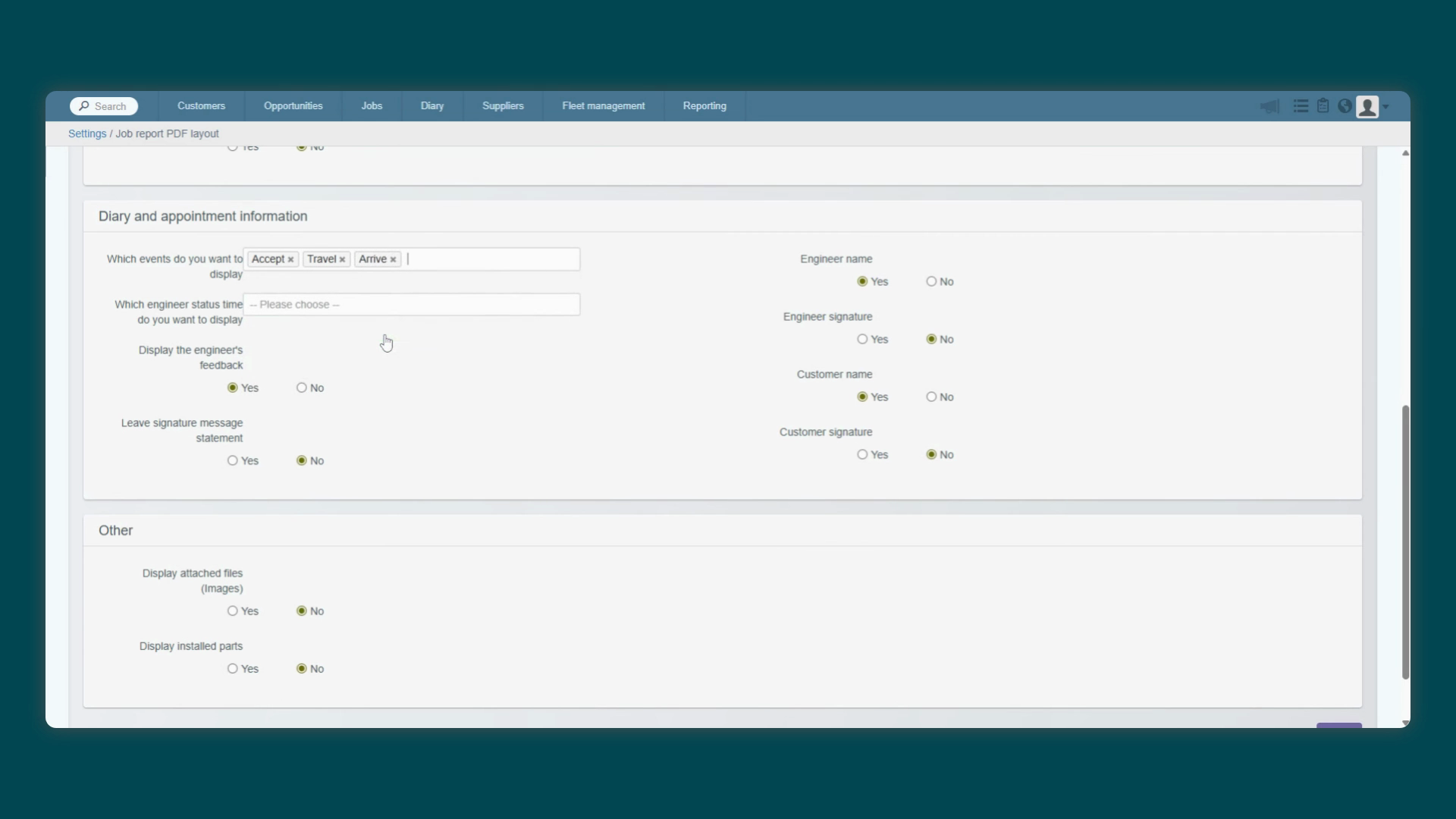
toggles for the Engineer signature and Customer signature. An important one to note is the Display the Engineer's
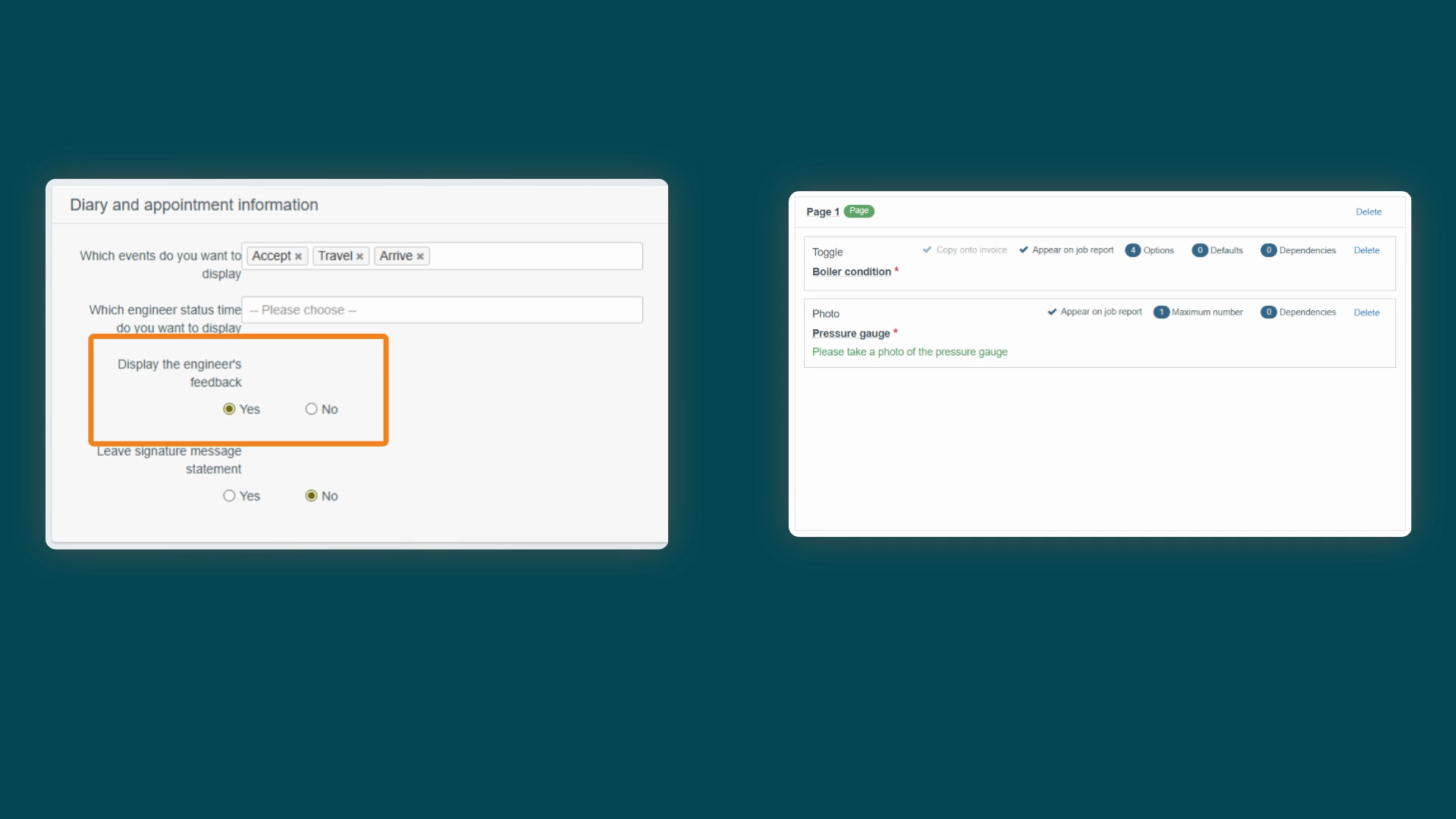
Feedback toggle. For this to work, you must also have enabled the Appear on Job
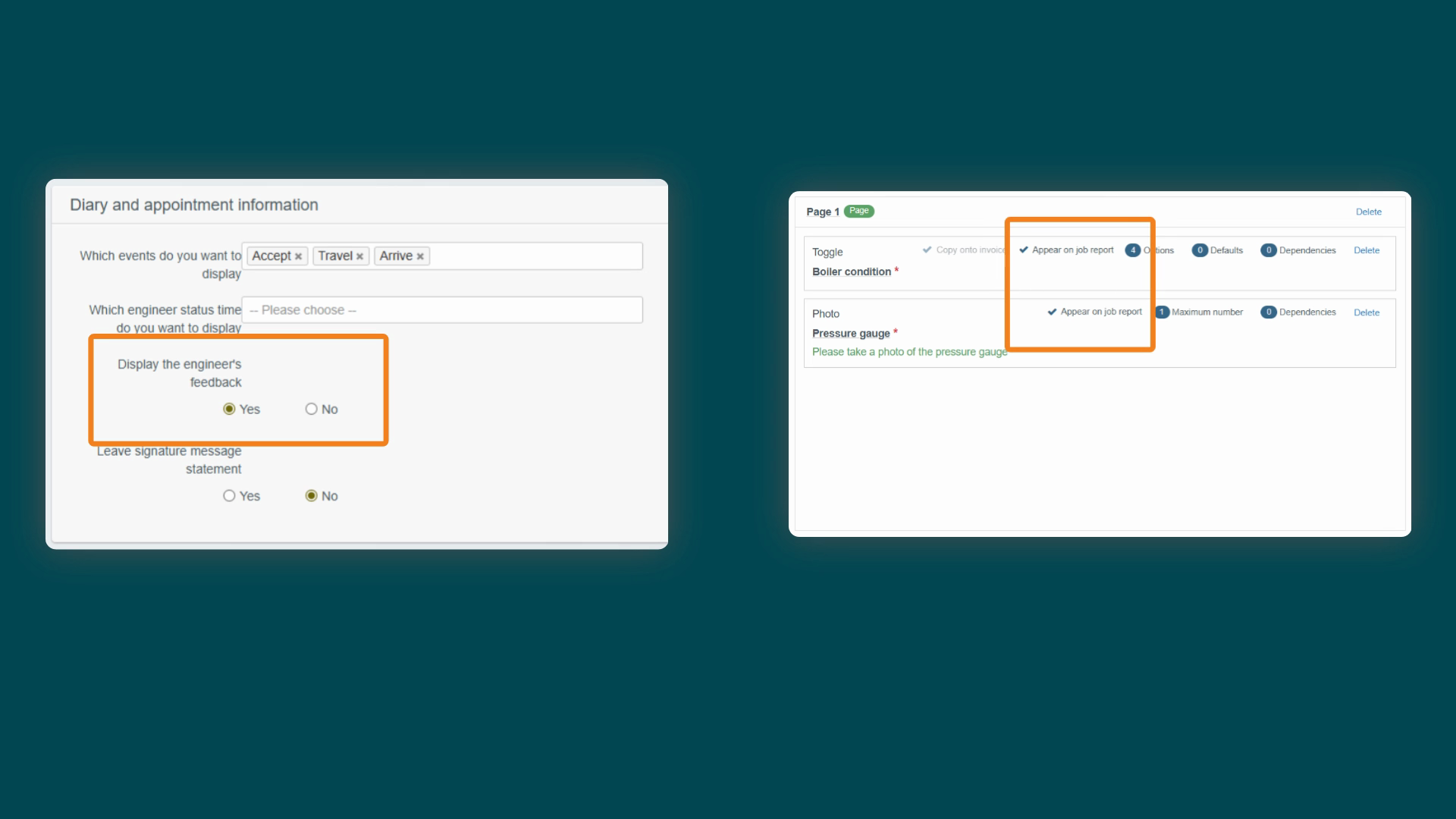
Report setting for the specific inputs within your mobile form. Having both options gives you
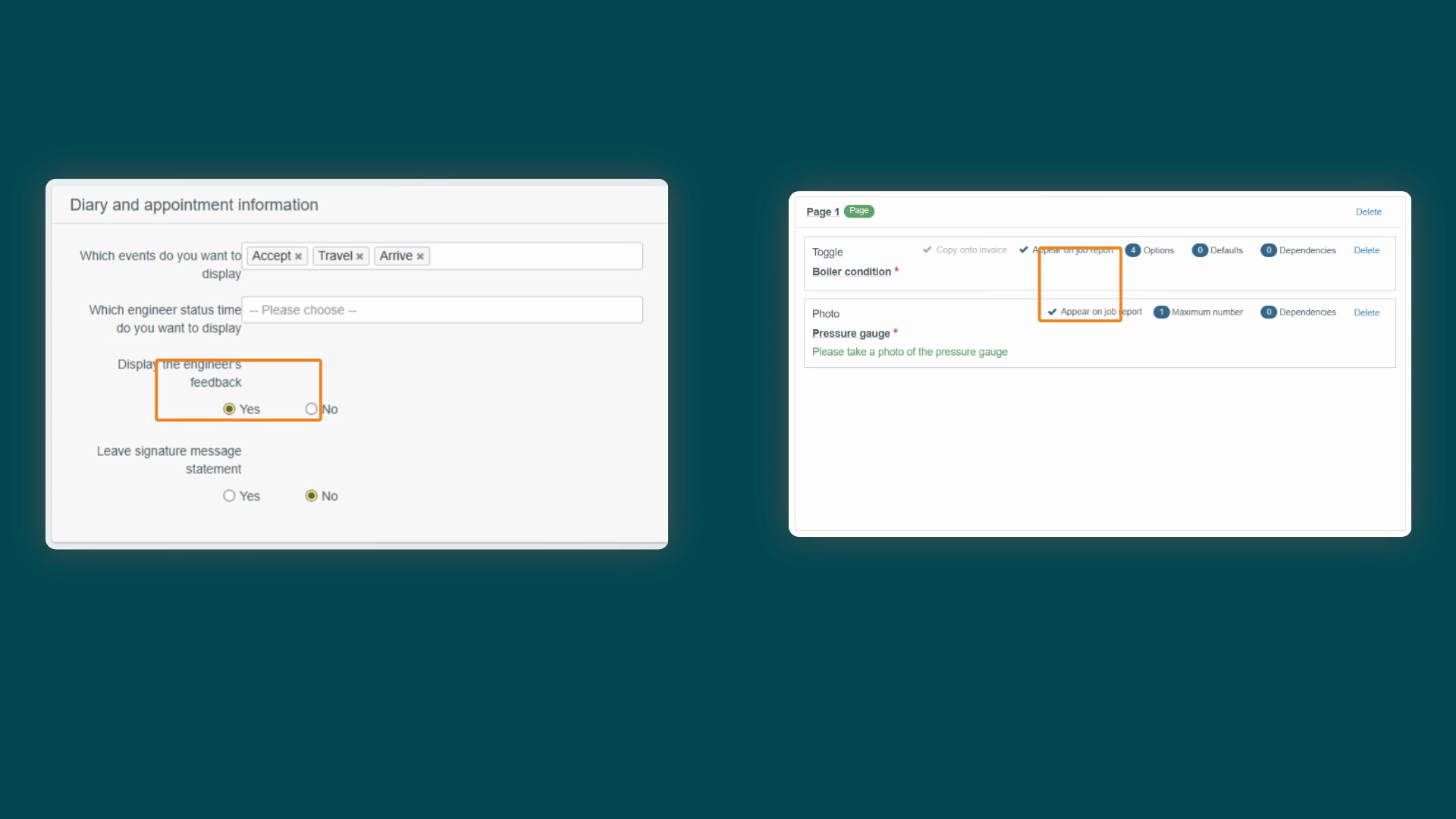
precise control over what's collected versus what's shown to the customer. You can also choose to display how the job
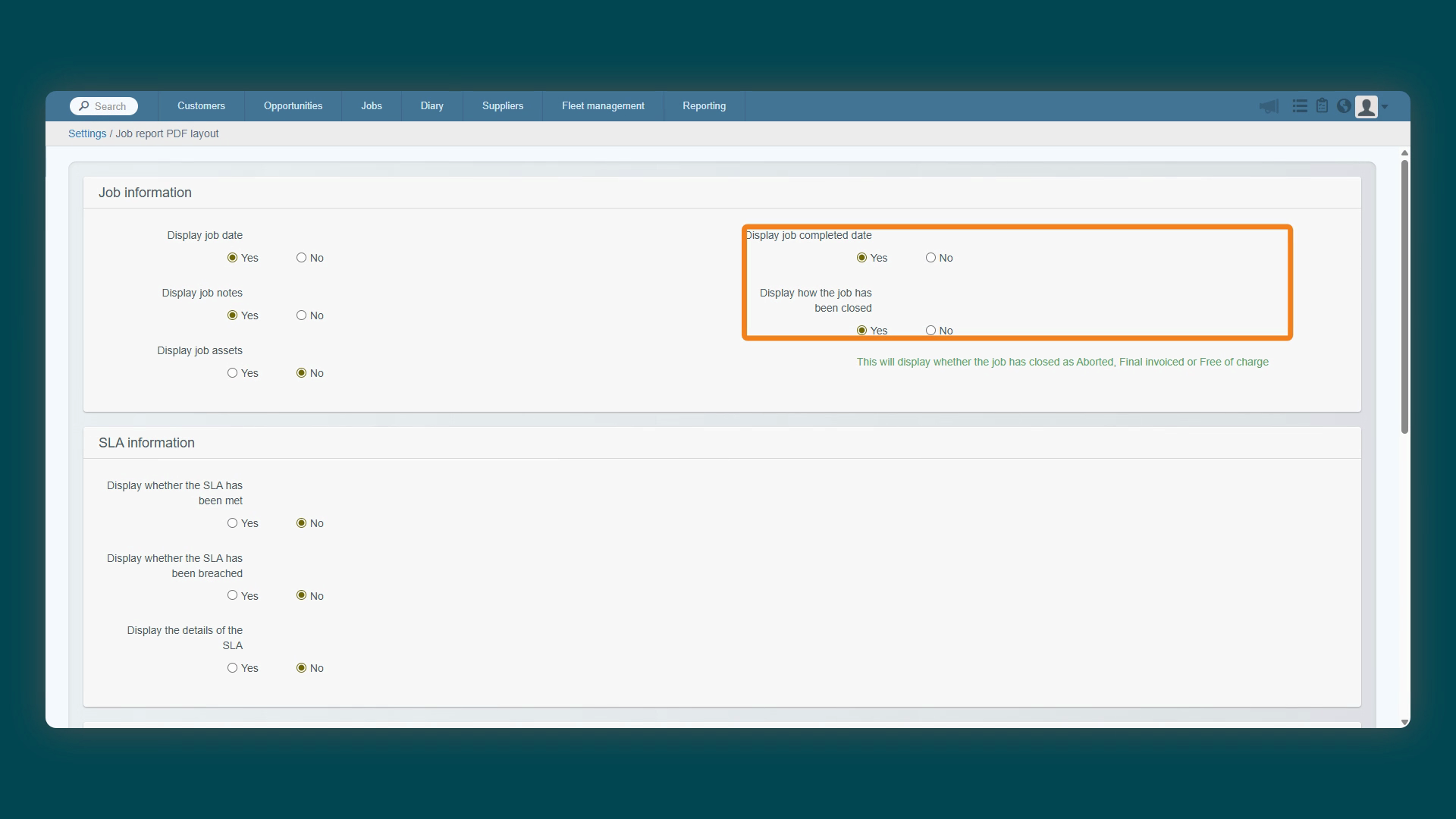
was closed, which will show if it was invoiced, closed as free of charge or another status. This
adds another layer of clarity for the customer's records. Why not pause here and think about your own job reports? Consider which pieces of information

are essential for your customers to see and which might be unnecessary. Getting this right is key to providing a professional and transparent service. Now let's
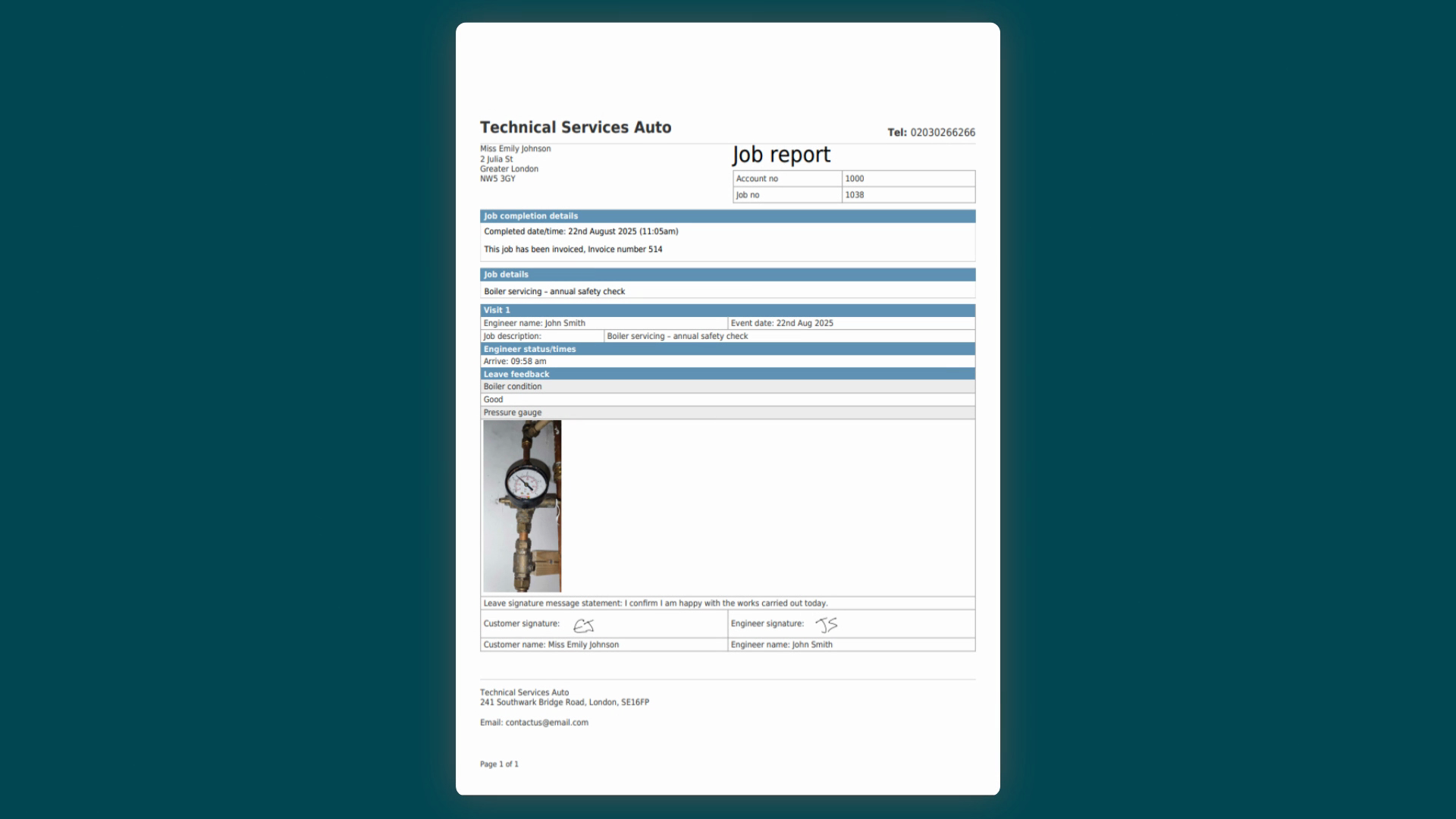
take a look at how these settings come together on the final document. Here is an example of a
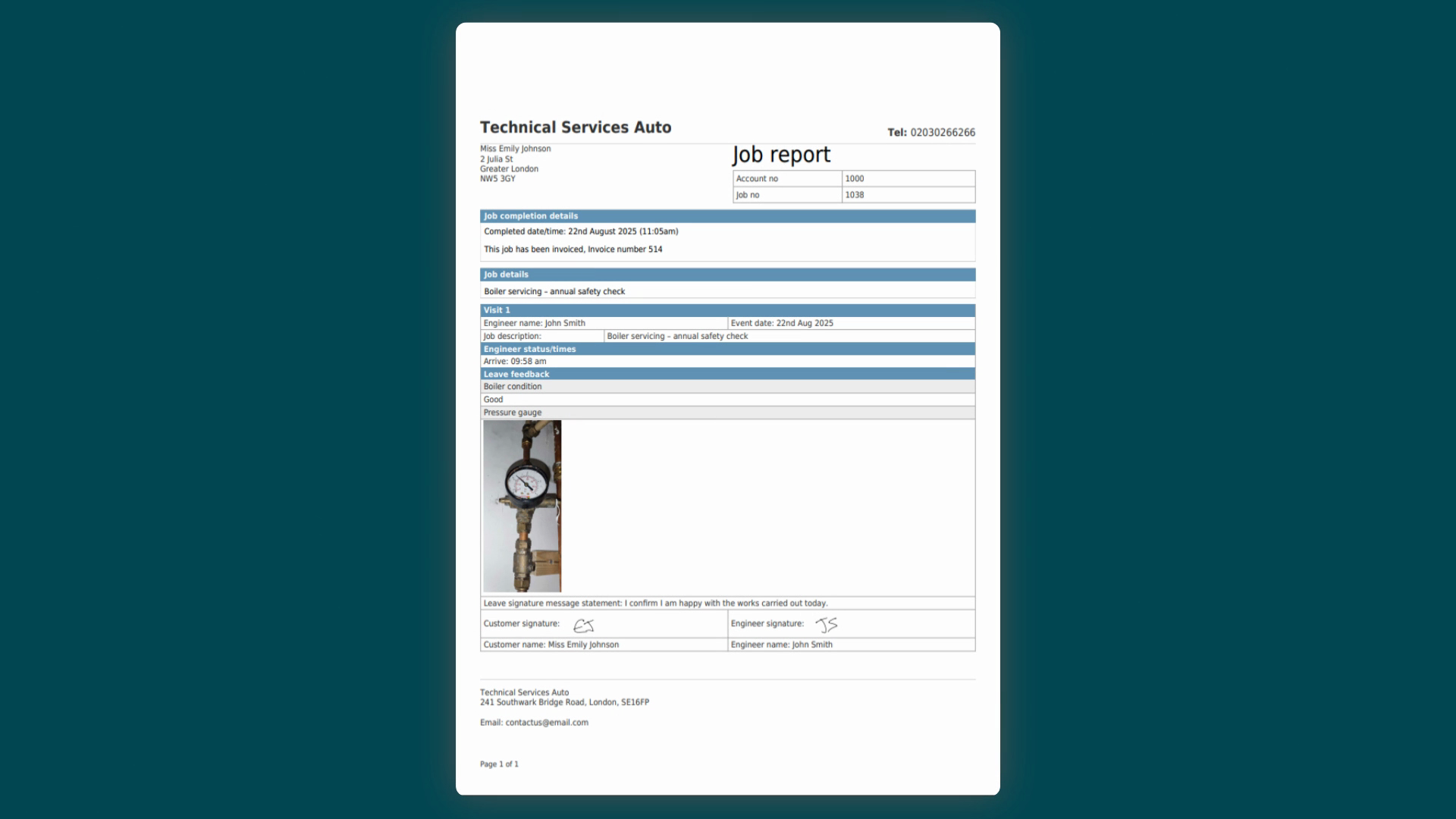
completed job report PDF. You can see how a clean layout combined with your company
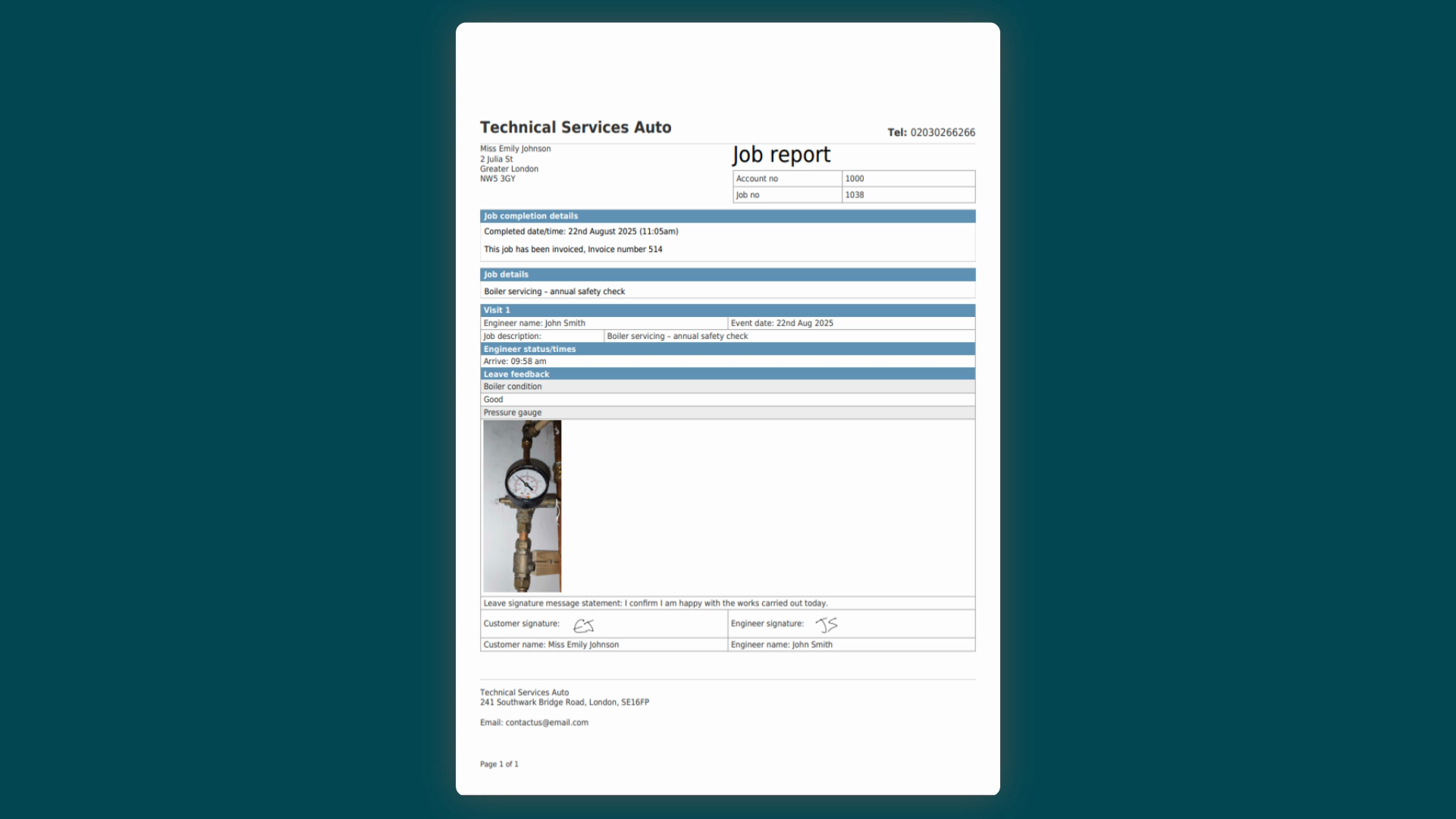
branding creates a professional and easy to read summary for the customer.
Created on
Did you find this article helpful?